Windows 10 installing the Virtual machine, right?
- The Preview of Windows 10 should install in General, in a virtual machine. Even if the operating system constantly receives Updates, it's not yet suitable for production use.
- The Installation of Anti-virus Software in the Test to crash of Windows. Also consuming tasks leave the System and re-collapse.
- An old PC is available, this is perfect for a first Test of Windows 10. Even on slightly dusty devices, Windows 10 runs faster than in the virtual machine.
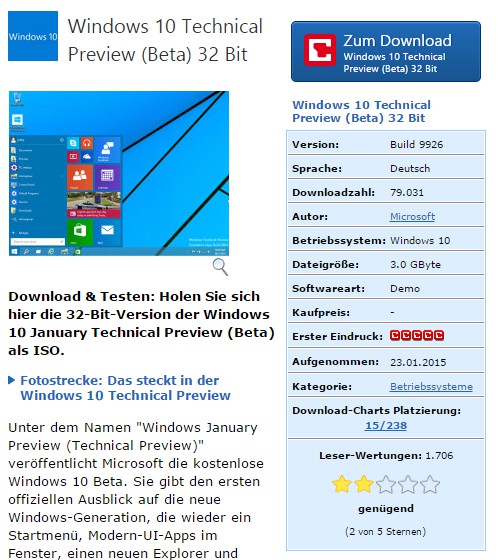
Windows 10 Technical Preview
Windows 10 install: 32 or 64 Bit?
- To Test the 32-Bit Version is quite sufficient. In the virtual machine is highly recommended because your Computer has to share its memory with the virtual machine.
- Install Windows 10 properly on a Computer, you can also grab the 64-Bit Version. However, if you're not productive with the System, brings them no benefits.
- The Windows 10 Technical Preview 32-Bit is about 3 Gbytes in size, the Windows 10 Technical Preview 64-Bit about 4 GByte.
Window 10 Preview download
Option 1: Windows 10 in the virtual machine install
- For the Installation in a virtual machine is particularly well suited to the free VirtualBox. Instructions for Installation can you find in this practical tip.
- In the virtual machine, you have the opportunity, the space for the Windows 10. Select here for at least 15 Gbytes. You want to additionally install a couple of programs, you should consider this also.
- Note: if VirtualBox refuse to Start the Installation, navigate to the settings category "System" and disable it under the tab "acceleration" of the Option "Nested Paging"check box.
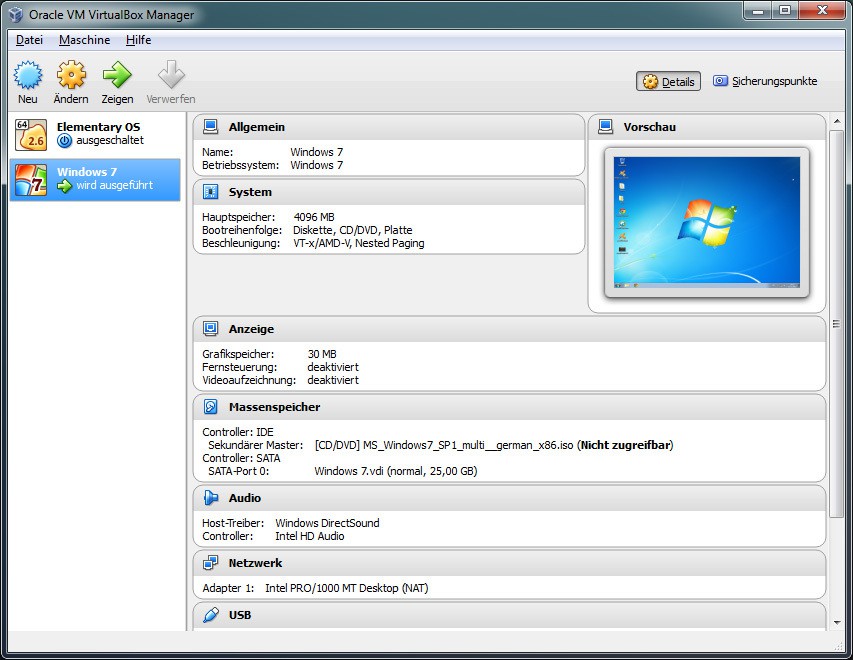
Windows 10 in VirtualBox, launch
Option 2: Windows 10 as a real operating system install
- Install Windows 10 on your Computer, you must previously a new Partition in Windows to create. This is not done, you will lose your current Version of Windows.
- Unzip the contents of the downloaded Installation either on an external hard drive or a USB Stick. Alternatively, you can burn the ISO file to a DVD.
- You create a new Partition for Windows 10, it should have enough storage space. After the Installation of Windows 10, the hard disk is already filled with at least 12 GB.
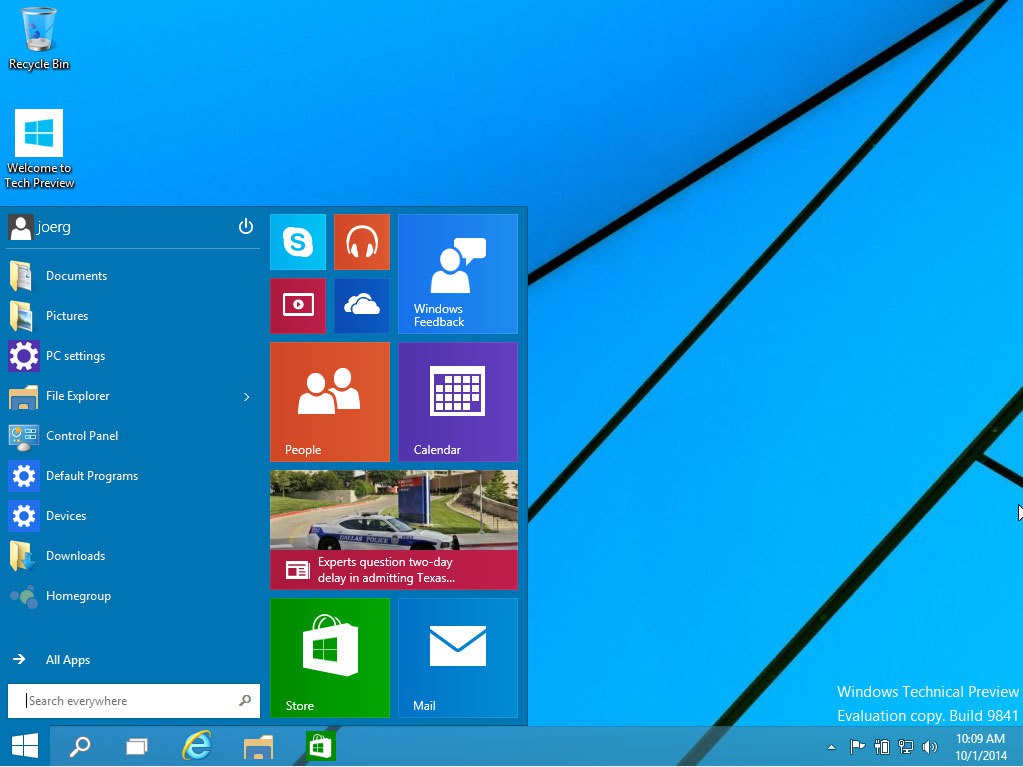
Windows 10 install
Tips and Tricks to Windows 10
Windows 10 comes with many new feature. Most of them we have already tested and they will explain to you in the following practice tips:
- Windows 10: Cortana to set up and use
- Windows 10: Multiple Desktops open
- Windows 10: Spartan-enable Browser
- Windows 10: games, with on-Board tools
- Windows 10: maps save offline
- Windows 10: the Start screen, re-enable
- Windows 10: New shortcuts in the Overview
- Windows 10: Design Aero Lite activate
- Windows 10: OneDrive on startup disable
- Windows 10: search for Updates
In the next practical tip we can tell you when the official Version of Windows 10 will appear.