
Step 1: Aero Lite Theme under Windows
With Aero Lite, the task will appear under the other bar, and the window frames a little more distinctive. Also the 3D effects. Thus, Aero Lite is also a bit resource-consuming.
- Simultaneously press the keys "Windows" and "E", so that the Explorer opens.
- Now navigate to the path "C:\Windows\Resources\Themes". Here you will find the file "aero.theme".
- You will have to copy the file "aero" (not the folder) and paste it on the Desktop.
- Here you can change the name to "aerolite.theme" to.
Windows 10: Aero Lite Theme find
Step 2: right for the Aero Lite Theme get
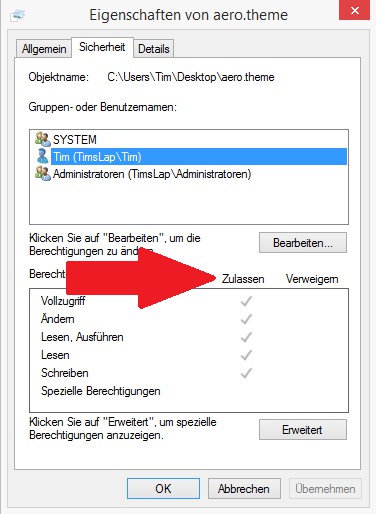
- Click with the right mouse button on the Desktop the file "aero.theme" and select the "properties".
- You can switch to the tab "security" and click on the "edit"Button.
- Now, ensure that the rights of the above-listed users or groups, respectively, to "Allow".
- Close the window then on the "OK"Button.
Win 10: rights for Aero Lite Theme
Step 3: Aero Lite Theme configure
- Click with the right mouse button on the file "aero.theme" and select "Open with" "Notepad" or "Notepad".
- In the first paragraph, the third line with the command "DisplayName= starts....". Change the line in "DisplayName=Aero Lite".
- Below you will find the line "Path=%ResourceDir%\Themes\Aero\Aero.msstyles". Change it to "Path=%ResourceDir%\Themes\Aero\Aerolite.msstyles".
- Save your Changes and close the file.

Win10: Aero Lite Theme edit
In the next practical tip we show you how you can have multiple Desktops in Windows 10 open.





