Windows 8: how to create Partition
- Simultaneously press the keys [Windows] + [R], so that the command "Run" will open.
- Type diskmgmt now the command".msc" and confirm with "OK". Then the "disk management"opens.
- You open with a right-click on the desired hard drive from the context menu, and select the Option "shrink Volume".
- Here you can select a size of the storage you need for the new Partition. The new Partition will take 20 GB, reduce the Volume to 20 GB.
- Click on the Button "Shrink", shrink the Partition, and it is a space that is "not assigned".
- Click with the right mouse button on the "Unallocated" disk and choose the Option "New simple Volume". Here you can allocate the entire Free space.
- Note: if the empty memory is displayed as "not associated", you need to Format it with a right click"".
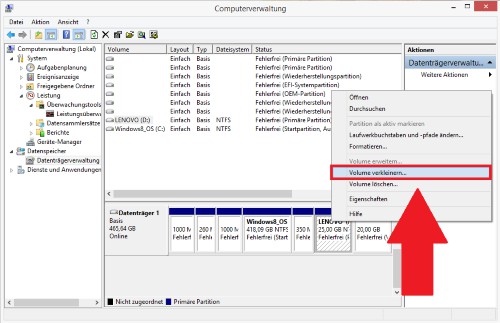
Windows 8: create Partition
How you Windows-system partition increase, we will show you in the next tip.