Mouse vanished hand: The Basics
Often the solution is quite simple, these steps should be followed.
- Then restart the Computer. Often a reboot works wonders.
- Check whether the USB connector of the mouse is loose. Perhaps the mouse is not active and the pointer is outside of the screen.
- Turn on the Laptop, if necessary, your Touchpad. To do this, press the [Fn] and one of the F keys. What button you need to press, you will see the Symbol on the keys.
- In the case of multiple monitors connected to move the mouse to the left or right edge. Depending on the resolution of the mouse can get lost fast.
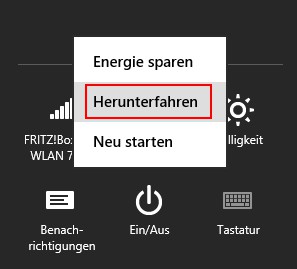
Restart Windows
Mouse disappeared, pointer: input device check
If you are unable or limited in function to check if the mouse is not working.
- Make sure your mouse is recognized by Windows. To do this, press the [Windows key] + [u] to go to the control panel. Alternatively, you may enter the Contoll Panel in the control panel. Press the [Windows key] + [r] and type the command "shell:control panel folder". Confirm with [Enter].
- Navigate with [Tab] or the arrow keys to the entry "mouse". Confirm with [Enter].
- Press [Ctrl] + [Tab] go to the tab "Hardware" to.
- You will not see any mouse, even though you have connected to an input device, it might be broken.
- Your mouse will be displayed, press again [Ctrl] + [Tab] to navigate to the tab "pointers". By a [Tab] you can select a different pointer, if your pointer has been changed to Transparent.
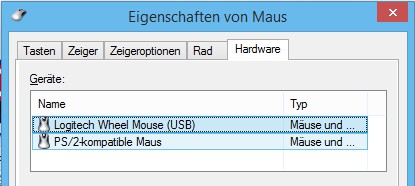
Windows: mouse pointer find
As the size of your mouse pointer change, we will show you in the next tip.