
Here's how: All of the images in the Word document the same size
After you have inserted the images in the Word document, you can make them the same size.
- Hold down the Ctrl key and click on all the pictures you want to have in the same size.
- Then select the tab "Format" and search there for the field "size".
- here you can change either the height or the width for all the images by entering a value. This setting is then applied to all images.
- If you can't find this tab, you can also select all images and right click under the "More layout options" and "size" the value for all images. Confirm with "OK".
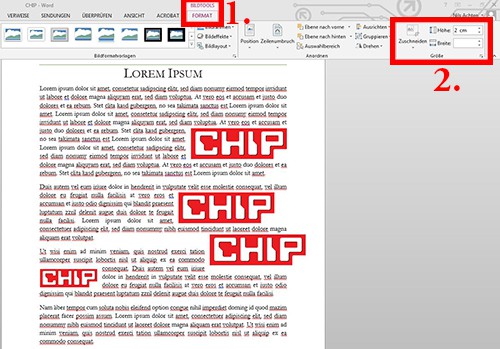
Word: All pictures in the same size
By the way, you can see the inserted images in the Word crop. Our next practice tip shows how this works.





