
Windows 7 does not start up: Advanced boot options
If during the boot of Windows, not even the Animation is loaded, you will enter only in a roundabout way, to your PC.
- After you start the PC, first comes an image of your Bios. Then you have a short time to press the button [F8]. With this button you access the advanced startup options of Windows.
- Select "safe mode". This does not work, select "enable boot logging". These modes start Windows without the variety in addition to the services you have installed.
- If you have recently installed a new driver, you should set this back. On the Website of the manufacturer, you should always find older Software, and driver versions. Uninstalling the new driver completely and restart your computer if necessary. Then, install the last working driver manually.
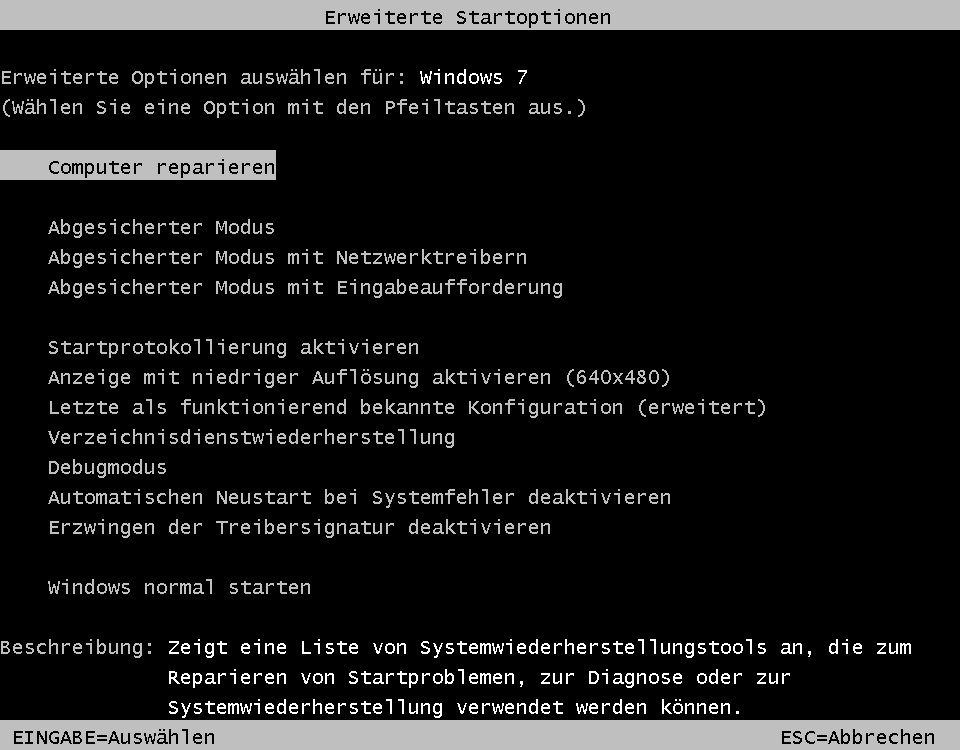
Advanced Boot Options
Windows 7 will not start: Clean boot
The above tip should not be the cause of the starting difficulties, try a clean boot.
- You start your PC such as start-up described in the mode "enable logging".
- In Windows, press the keys [Windows] + [R] and enter in the window "msconfig". Confirm with your click on "Ok".
- Now click on the tab "system start" and then click "disable All".
- Now go to services tab and hide all Microsoft services on the appropriate button in the "All Microsoft services to hide". Then disable all remaining services.
- Now it is a regular system start by shutting down your PC, and then independently high.
- Now, if all goes well, a newly installed or modified service to the Boot fault. You can try to make the corresponding service through a process of elimination to locate, activate, and services.

Windows 7 save: system start-up
Windows 7, save: Using the installation DVD of the Windows Installation check
To look any further for errors in the boot instance, and to repair this, you can use startup repair on the Windows DVD.
- To do this, insert your Windows DVD in your drive and then restart your PC.
- Set in BIOS the DVD drive as the default Boot Device. How to make your default Boot-Device order to change can we can tell you in this practical tip.
- After the restart, should be displayed on your screen, the message "Press any key to boot from CD or DVD...". You need not press the button, your PC should automatically boot from the DVD.
- Then select startup repair option and let the Windows Installation, the boot sequence check. This can take some time.
- After a reboot you need to recover your BIOS the correct Boot-Device Priority back. Pay particular attention in the case of several hard drives that you select the hard drive with the Windows Installation as the first hard disk.
- In an emergency, even a Windows restore point can help. You can, however, make sure that you back up your data and files!

Windows 7 rescue DVD
Windows 7 does not start: USB Legacy Mode and Boot Device Priority
In addition to the software bugs in Windows itself, also can be configurations, and hardware issues failure of Windows is responsible.
- From the first put all non-essential USB devices and not for booting the required disks. May be there is a Defect here.
- Often USB keyboards and mice are a Problem for the BIOS. You can disable in the BIOS the USB Legacy function. This ensures that USB devices are not loaded until after the boot process. Here, however, caution is advised: you Should not have a PS/2 keyboard, you can't undo this Change!
- Also the graphics card may be the cause of the error, if the contacts are oxidized, or another Defect is present. If you have the option to use Onboard graphics, remove them to test your graphics card and then try to restart your PC.
- If you have overclocked your PC or other settings in the BIOS have changed, you can try the BIOS to default values to reset.
- Should you have none of the tips helped, you can try to re-install Windows. In this case, all data will be lost, however. You back up so therefore, all of your data and files!
- Otherwise, a hardware can be defective power supply, hard drive, motherboard or other hardware components. To test this, you need to test all of the parts in accordance with the exclusion principle.

Windows 7, save: BIOS check
How to make your Windows Installation without the Windows DVD to the factory defaults can, we show you in this practical tip.





