
PGP-Encoding is safe by Thunderbird to communicate
The establishment of the PGP encryption is not easy. In the following steps we will show you how to do it:
- First of all, download the encryption program Gpg4win.
- After the successful Download, you install Gpg4win, wherein it is sufficient in the components selection to install Kleopatra and Gpg4win compendium. (See Photo Gallery)
- Then, you create your first key pair. Key pair because there is the so-called asymmetric cryptography is always a public key and a private key.
- To create the key pair, you first call the Kleopatra and select under the "file" tab, the Option "New certificate".
- In the menu "wizard for the creation of the certificate," choose the Option "Personal OpenPGP key pair generate".
- Under "enter Details" and enter your name and the appropriate e-mail account, through which you, in the future, your encrypted emails and want to receive.
- After that, you will be prompted to create a secure password. Safe means: letters, Numbers, and special characters and a minimum length of eight characters. To confirm the password, you must enter it a second Time.
- After the message "key pair successfully" click "finish". In her Cleopatra-main menu you should now see the created key.

Encryption Gpg4win
Exchange of public PGP-key
The key alone is of no use, of course, still nothing. Therefore, you should replace with your communication partners, the public PGP key so that the encrypted E-mail messages for the respective recipients are also readable - otherwise, it might be a little too much secrecy.
- In the Kleopatra main menu, you will find in the menu bar, the Option "import certificates" and the Option "export certificate".
- To send to your conversation partner your public key, go to "export certificate" and send your communication partner and then the file.
- Conversely, you also need to have from your conversation partner the Public Key. After he has sent you the file, choose subsequent right "certificates import" and add the public key of your communication partner your Kleopatra main menu.
- Alternatively, you can upload your public key to a key server.

The Kleopatra Main Menu
Enigmail in Thunderbird to install
After the main work is done, you must integrate the Add-on Enigmail in the Thunderbird Email Client.
- Click on the button to the "application menu" which you can find on the right-hand outer page and select in the drop-down list of "Add-ons".
- In the Add-ons Manager, you first call "Add-ons, click search" and then type in the search box, type "Enigmail".
- After a successful search click on the "Install" Button behind Enigmail.
- After you have started Thunderbird new, discover the tab of the "OpenPGP", when you are writing E-Mails.
- Finally, select in the menu "OpenPGP security" nor the Option "use Specific OpenPGP key ID" and then import using the button "select key" to the previously created key. The legal options you can activate according to your preferences.
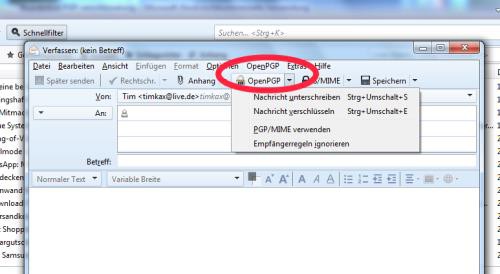
PGP in Thunderbird
A further safety aspect we discuss in the article on "Thunderbird SSL-encryption".
Latest Videos
The Gpg4win Components

The Gpg4win Components
PGP-key-pair create
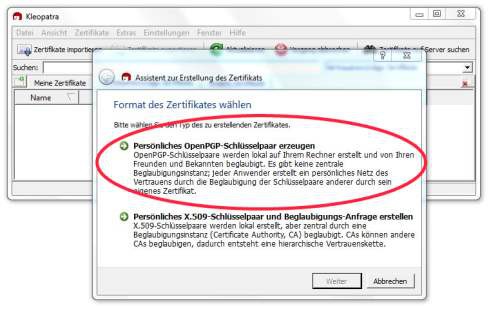
PGP-key-pair create
Details for the certificate

Details for the certificate
Secure password set

Secure password set
The PGP key pair

The PGP key pair




