
Step 1: for the Latest Linux Server files download
The Teamspeak 3-Server update, you must have the current Server Software. You will find on the Download page of Teamspeak.
- Scroll down to the Overview of "Linux" and click the "Download" Button behind the "Server x86" (32-bit Version). If you use a 64-bit operating system, click on the Button "Download" behind the "Server amd64".
- You will be prompted to read the end user license agreement. Then, select "I agree" and finally, "Submit", if you agree.
- You have downloaded the archive, unzip it to your Desktop.
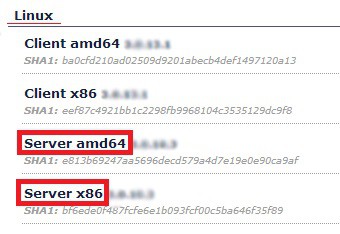
Current Server Version
Step 2: preparation of the Linux server
So you can update your Teamspeak Server on Linux, you must be prepared for your V - or Root-Server for that. Here's how:
- Start your SSH Client (e.g. PuTTY) and log in to manage your Teamspeak server.
- Go to the installation directory of your server, for example with the command: "cd /home/teamspeak3" (without the quotation marks).
- You can stop your Server with the command "./ts3server_startscript.sh stop" (without the quotation marks). Tip: use the "Tab"key, you can complete the file name automatically.
Step 3: Current Teamspeak-3-Server-Version upload
After you have stopped your Teamspeak Server, you can update it. Important: for security reasons, you should back up the files on your Teamspeak server on your Computer before you perform the Update. In case of an emergency, you can rely on the old files.
- Restart your Client, you upload files to your Server (for example, WinSCP) and login.
- Change to the directory overview of the "WinSCP"-surface in the main directory "home" and then in the sub-directory "teamspeak3", respectively, in the corresponding location of your Teamspeak server.
- You use your mouse to drag the new server files from your Desktop into the directory of your server, so the Upload should start.

Teamspeak-Server-Update
Step 4: Teamspeak 3-Server start
If all the files are successfully uploaded, restart the updated Teamspeak-Server:
- You enter in your SSH Client, type the command "./ts3server_startscript.sh start" (without the quotation marks).
Step 5: Successful Teamspeak-Server-Update check
You make last, make sure your Teamspeak Server has been updated to the current Version.
- Current Server Version: Restart your Teamspeak 3 Client and connect to your Server.
- Click on the name of your server. In the right info box of TeamSpeak 3 in addition to "Version should be" now the updated TeamSpeak 3 Server Version listed.
- The legal system-Acquisition: Open your FTP program the last Server's log file in your Server installation directory. Are you looking for an entry like this: "2014-01-22 13:27:00.123456|INFO |SQL | | updated permissions to version "
- Your right the system has been successfully applied, if the entry for your server matches with this (apart from the date and time), and at the end of the right server version.
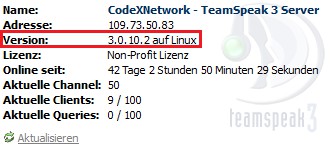
Teamspeak 3 Server Version check
This practice tip was carried out on a V-Server with Debian 7.0 in 32-bit Version. What you need to do, if your Teamspeak 3 does not work, we will show you in this practical tip.





