
Word: page numbers of individual pages hide
Thus, the continuous numbering is broken, you need to divide your Text into sections. In this example, our document has five pages. On page 3 and 4, we will hide the page number.
- Go to Insert at the top in Word to the tab "" and select "page number" of the desired look of the page numbers.
- Click with the mouse to the last spot of page 2. The new section begins from page 3 onwards.
- You can switch to the "page layout" tab and select "breaks", the Option "Continuous".
- Click with the left mouse button, double-click the footer, you will see on the left of the words "section 1" and "section 2" (see image).
- Repeat these steps at the end of page 4, so that a third section starts from page 5 onwards.
- You select on page 1, the page number, click with the right mouse button and choose the Option "format page numbers".
- Select below the Option "Start at" and put a 1 in the box. Confirm with "OK".
- Now go to the footer of page 3 and uncheck the top Option "link to previous".
- You can delete the page numbers on page 3 and 4 now. There are complications, color of the page numbers just know.
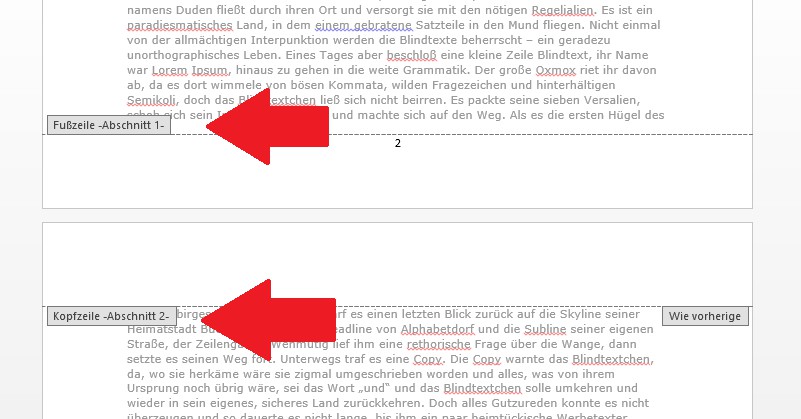
Page numbers in Word hide
In the next practical tip we show you how to get the page numbers in Word, from the third page to start.





