
Word, Excel, PowerPoint: animations in Office 2013 turn off
The animations fall in the normal use of hardly, in the case of larger calculations, it can however lead to delays.
- Simultaneously press the keys [Windows] and [U], opens the ease of access Center.
- Under "show All settings" you can find the item "Computer without a screen".
- Here you can activate the Option "All unnecessary animations off (if possible)".
- Via the Button "OK", your settings, and the animations in Word and co. off.

Office 2013: Animation off
Office 2013 & 2016: disable animation
The instructions above does not work, you can make the Change manually in the Registry:
- Simultaneously press the keys [Windows] and [R], so that the command "Run" will open.
- Type "regedit" and confirm with "OK". Then the registry Editor will start.
- Navigate on the left to the following path: HKEY_CURRENT_USER\Software\Microsoft\Office\15.0\Common\Graphics
- The folder "Graphics should not be", click with the right mouse button on the "Commons" and create the folder "New" and "key".
- Open the folder "Graphics" and click on the free area on the right side with the right mouse button.
- Under "New" select "DWORD-value (32-Bit)" and name it "disable animation".
- You open the value then double click and change the value to One (1).
- Confirm with "OK", close the window and restart Windows. Then, the animations in Office 2013 are disabled.
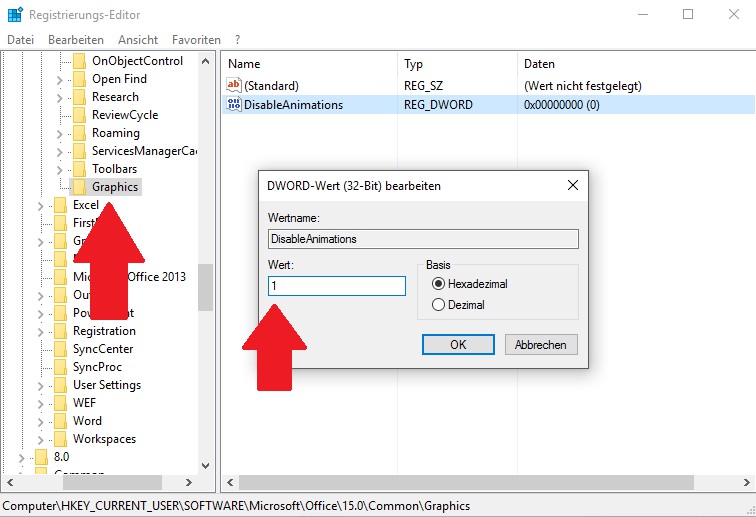
Animations in Word, disable
In the next practical tip we will show you how you Word documents with a password protect.





