Mind Maps: Visualise Your Thoughts
With mind maps, thoughts can be very good sort and also visualize. So you can use them, for example, in Brainstorming sessions, to collect various ideas and thoughts to organize, and afterwards to speed up the implementation.
Word: mind map create
With the read program Word can be mind maps is relatively easy. So you have visualized their thoughts in the blink of an eye on the Computer and can print out the MindMap, send, or publish.
- Open a blank Word document. Under the top tab "startup" find the icon "Form", which allows you to insert various shapes in the document.
- You start with a shape in the middle of your sheet. After you have created the circle, add the Text with a right click "add Text".
- So you create all your sub-points for the mind map. You can change colors, fonts, and sizes as usual.
- After you have created all the points, you just have to connect the individual shapes. See "Form" and "lines and Links" the appropriate lines.
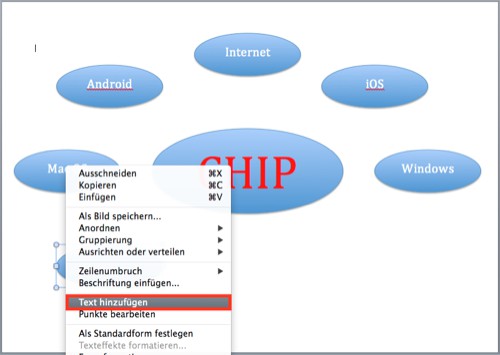
MindMap in Word to create
If you have the capabilities to Create your mind map in Word is not sufficient, we can provide you with the 3 best programs for mind maps in the next practical tip before.