
Mac OS X: the MySQL database Server, install
- Go to the Installation on the MySQL side.
- Select from the drop-down menu, select "Mac OS X" and download the package suitable for your operating system. Important: for the Installation you need to have a "dmg"file format!
- You will then be asked to log in or register. You can skip this step, however, with a click on "No thanks, just start my download".
- Open the "dmg"file, you will get 4 different files. You start with the Installation by selecting the file "mysql-5.5.9-osx10.6-x86_64.pkg" to run. The file Name may differ, if necessary, easily.
- Follow the instructions in the installation wizard and enter, if necessary, your Administrator password.
- You can switch back after the Installation in the "dmg"file and open the "MySQL startup item.pkg".
- Follow the instructions and enter your Administrator password, if necessary.
- Go to the Installation of this application back in the "dmg"file to the file "MySQL.to install prefPane".
- Then a small window will open. Here, click on "Install".
- After a successful Installation, the MySQL configuration window will open and you can start the Server.
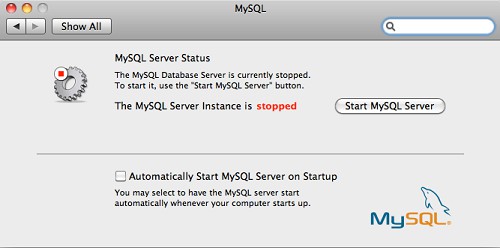
Mac OS X: MySQL-DB install
This practical tip is based on Mac OS X 10.7. As you are on Linux, a MySQL database set up, we will explain in our next practice tip.





