Variant 1: WhatsApp-data-in-mobile-Change keep
You don't change the operating system, but you continue to use an iPhone or an Android Smartphone, the portability of your data a breeze. Only an exchange between the systems takes a little more effort.
- Open WhatsApp on your old device, and select the bottom-left (iOS) or top right in the menu (Android) the "settings". In the category of "chat" you find the "Chat Backup".
- Here, you can create a Backup with the desired content in the desired way. Then set up your new phone, you will be asked for the registration in WhatsApp if you want to restore the Backup.
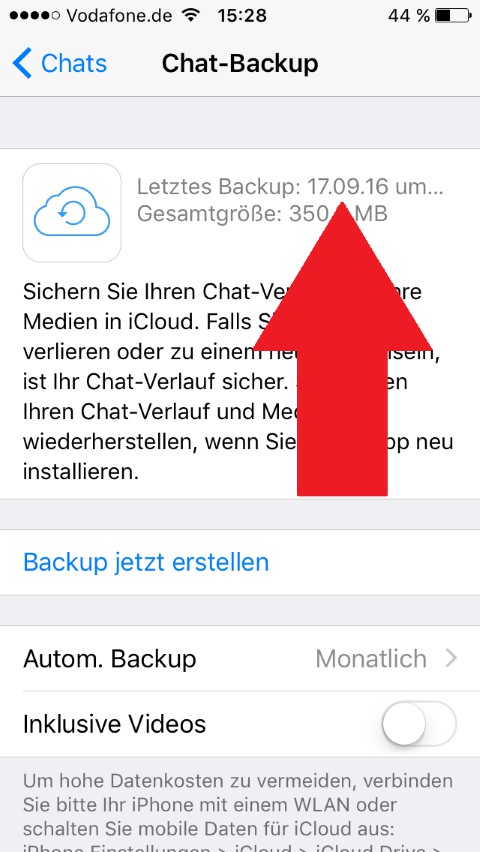
WhatsApp-Backup for cell phone-exchange
Version 2: WhatsApp-switch from Android to iOS
- Enable first the USB Debugging on your Android Smartphone.
- Download now the free Tool "Android WhatsApp to iPhone Transfer" to download and install it.
- Connect both your iPhone as well as Android phone via USB cable to the PC.
- Now you need to confirm on the Android Smartphone the USB Debugging on and start the installed Tool.
- Top left, click on "File" and search for all Chat out of the gradients that you want to transfer.
- At the top you have to click on the second Button from the right side of the "Android to iPhone"Button.
- The process is completed, you can start WhatsApp on the iPhone. The Backup is recorded.

WhatsApp: Android Backup to iOS
Variant 3: WhatsApp-moving from iOS to Android
- Connect your iPhone via USB cable to the PC and start iTunes.
- From there you can select your iPhone and create a Backup. Make sure that the Option "encrypt Backup" is enabled.
- Download the "iPhone Backup Browser" for Windows or "iPhone Backup Extractor for Mac" down.
- Start the Tool and switch up to the "Advanced" tab. Here you activate the item "net.whatsapp.WhatsApp".
- Click on the Button "browse" and select a location, for example in a new folder on the Desktop. Via the Button "extract selected files" will be saved to the WhatsApp Backup there.
- Take the Android Smartphone and register with WhatsApp. Download the App then "WhazzApp Migrator Lite" to download.
- Connect the Android Smartphone via a USB cable to the PC and copy the WhatsApp Backup in the folder "WhatsApp\Databases" of your smartphone.
- You start the App, tap "Select iPhone archives" and select the path "WhatsApp\Databases". About the Play Button, the Backup will be imported.
- Uninstall WhatsApp and download it again from the Play Store. A second registration is not required. You will now be asked if you want to import the recorded Backup.
In the next practical tip we will show you 7 things you don't have WhatsApp know.