
Chromecast Audio set up on the iPhone or Android device
On the Smartphone, you can set up Chromecast Audio the Google Home App:
- Download the Google Home App for iPhone and iPad or for Android download.
- You open the App and accept, if necessary, the terms and conditions of use. Make sure that your Smartphone is connected to the Wi-Fi network, the Chromecast Audio you want to set up.
- Tap the top right on "devices". On the iPhone, you must first activate Bluetooth.
- Chromecast Audio will now appear as a device. Select it and tap "Setup" and then on "Next".
- Once the connection is made, tap again on "Next". Now you can play a test tone. The sound is not heard, check that your speakers are turned on and properly connected.
- In the next step, select your Region, and tap on "Next". Now you can give the device any name you like. The guest mode and the Option "use data and crash reports to Chromecast are enabled to send to Google" by default. Select which functions you want enabled.
- Tap "Wi-Fi, select" to connect to chrome cast Audio with the domestic Wi-Fi. Enter the password and tap "Next".
- If not already done, log in the last step, with your Google-account to use all of its features to be able to.
- After that, you can have a look at the introduction of "Streaming made easy", in order to get a interactive guide. Tap "Skip" to start streaming directly.
Chromecast: Audio set up
Chromecast Audio set up in the Browser for Windows, Mac, or Chromebook
Also on the Computer you can set up Chromecast Audio. To do this you need Google Chrome.
- Make sure that the latest Version of Google Chrome is installed.
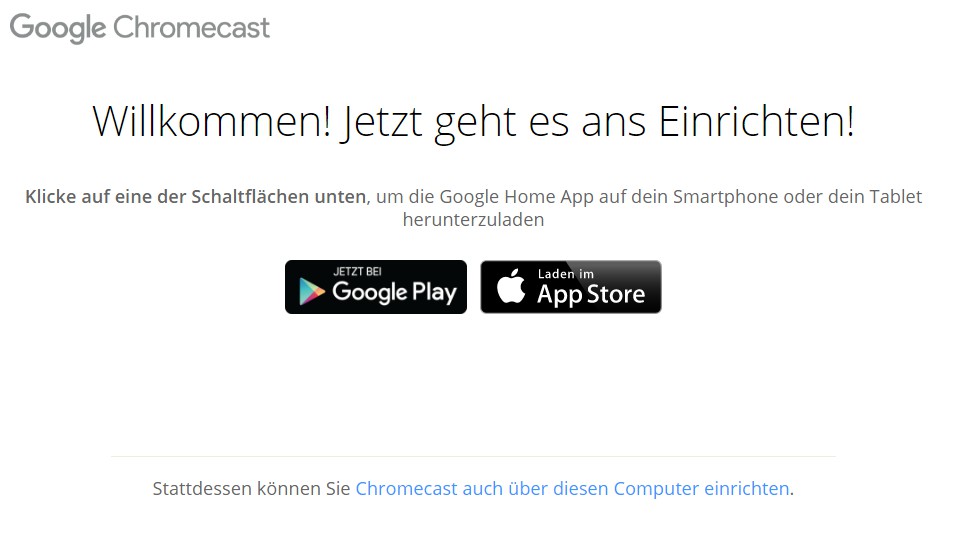
- In Chrome the Link chromecast.com/setup on.
- Click on "On this setting up the Computer".
- Chrome will now search for the Chromecast device. Click on it and select "Set up".
- The connection should now be established automatically. If that doesn't work, follow the instructions in the wizard to set the connection manually.
- Now you can play a test tone. You should not hear the sound, check to see if the boxes are turned on in the Chromecast and connected properly.
- Enter a name for the device.
- You connect the Chromecast and Audio to your Wi-Fi network.
- Now you can use Chromecast Audio on all devices.
PC: Chromecast Audio set up
On the next page, we show you how to Sky Go via Chromecast viewing.





