
Android TV: USB update Stick
- Call in the Browser the Sony online Support web site and enter the model name of your TV in the text box. The model number can be found on the sticker on the back of the TV.
- In the section "Software&Downloads" download the Firmware to your computer. To do this, you must accept the terms and agreements and then click on the "Download" button.
- Unzip the Download file and drag the file with the extension "pkg" in the main directory of the USB stick.
- For the next steps, the TV must be connected to the Internet, neither with cable nor Wi-Fi.
- Before the Update, the Firmware must be reset to the delivery state. To do this, navigate in the menu to "settings > TV > storage > manage To factory condition" and then click on "delete All".
- Turn off the TV and unplug it for about five minutes, in addition, from the power supply. The next step is to insert the USB Stick into the USB port of your TV, before you supply him with power and turn on.
- Turn on the TV now, should start the update process automatically. You simply follow the on-screen instructions. Important: During the Update process, you must stop pressing the buttons on the unit or the remote controls. Also you are not allowed to disconnect the TV from the power supply.
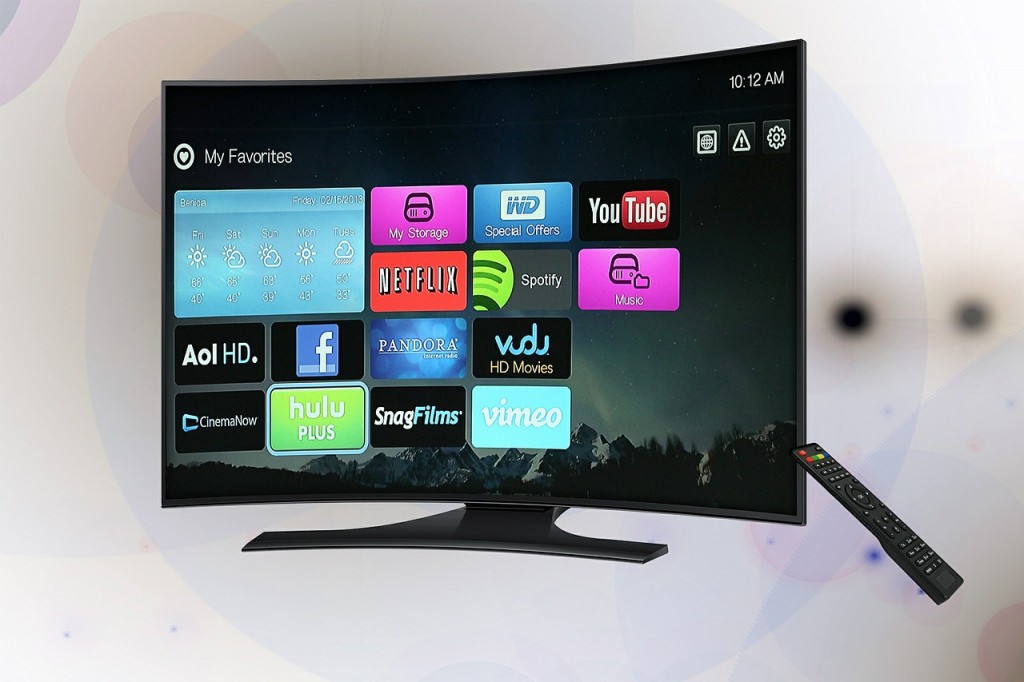
Android TV Update (Quelle:Pixabay.com)
Android TV: Update via Internet
You can also conveniently via the menu of your Android TV Update make. Detailed instructions can be found here.
As you on your Android TV, Sky GO, install and use, we explain in the next tip.





