
Android 7.0: Multi-Window enable
Turn on the new Multi-Window feature of Android Nougat, you can run two Apps simultaneously and operate. So save yourself the constant back - and-Forth. The Feature is already unlocked from the beginning, you can use it directly:
- To do this, start any App on your Smartphone, for example, the Browser.
- Then press and hold the App Manager Button on your Smartphone pressed. This is the button that you usually switch between your open Apps.
- After a few seconds, the App only takes up half of the screen. In the other half, you can choose a second App and tap to start.
- Then both Apps are active in parallel. The display does not fit, you can rotate your phone in Landscape or Portrait mode.
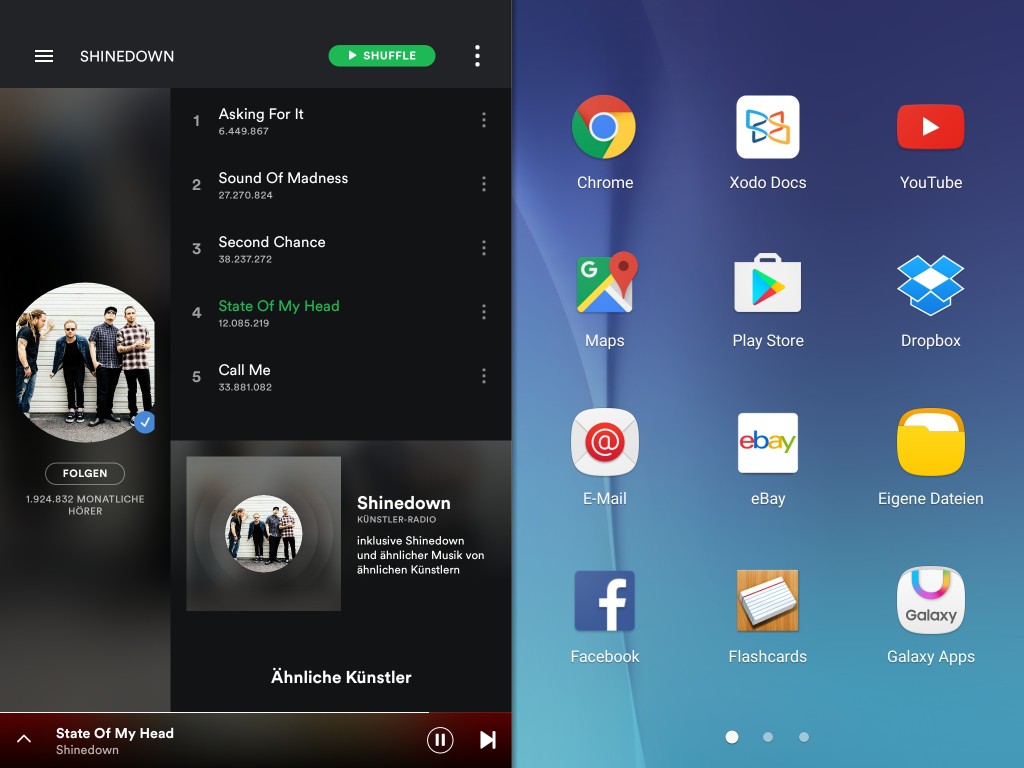
Multi-Window on Android, Nougat
Multi-Window Feature in Android 7.0 - the you need to know
You have activated the Multi Window Feature, you can adjust the two open Apps.
- To do this, tap in the center of the screen between the two Apps. About the menu Buttons, you can then drag the individual App window bigger and smaller.
- To end the Multi-Window mode, press and hold the App Manager Button at the again for a few seconds. So the second App will disappear and the first screen will again be displayed in full screen.
- Note, however, that currently not all Apps support Multi Window mode. Test so, with what Tools, the new Feature works.
Which of the phones you have Android 7.0 now already can use, betrays our Overview. You should still be on Android 6.0, and get stuck, you can use the Multi-Window Feature but also unlock.





