
Store in Windows 8 turn off
- Simultaneously press [Windows] and [R], this will open the Run Dialog. Tap there now, "regedit.msc" a.
- Now navigate to this path: "HKEY_LOCAL_MACHINE\Software\Policies\Microsoft". Click with the right mouse button on the folder "Microsoft" and select "New > key". This must be named "Windows store" (always without the quotation marks).
- Open the created folder / key and create them with a right click in the context menu of a 32-bit DWORD value with the name "remove-Windows-store".
- Now click twice on "remove Windows store" and assign the value "1".
- Now the Windows App is disabled Store. So you can use it if necessary, but again, assign it to the "remove Windows gates", the value "0".
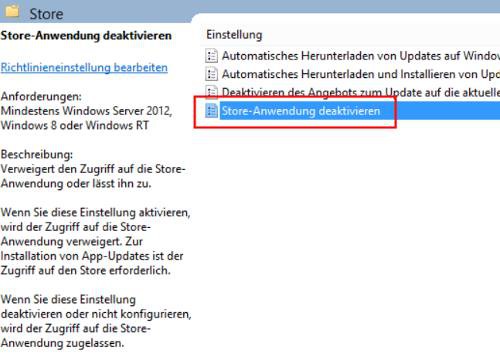
Group policy in Windows 8
Comfortable in Windows 8 Pro: Store, use group policy to disable
- * Open the how to in the first paragraph of the Run Dialog and type here "gpedit".
- Click now to the path "computer configuration/Administrative templates/Windows components/Store".
- Once there, double-click on the Option "Turn off the Store application" and set the radio button for "Enabled".
Read also, how to you Apps in Windows 8.1, block.





