
The background image of the desktop under Windows 7
- Click with the right mouse button on a free area of the desktop. Select "Customize".
- In the newly opened window "adjustment" at the bottom click "desktop background".
- Click next to "picture location" click the arrow to an image-pick library. Via "Browse" you can select a folder on the hard disk and press "OK".
- All of the images of the respective library or folder are displayed. Click on the image you want to set as your Desktop background Wallpaper.
- On "save Changes" to save the new setting.
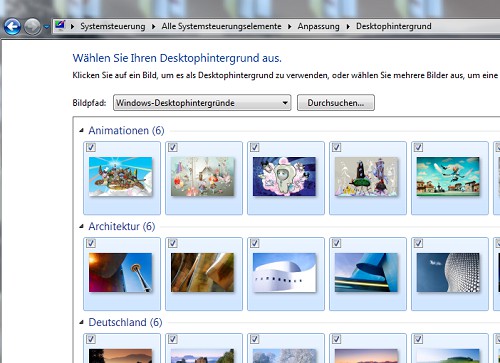
Desktop-change background image
In our gallery you will find all the Windows 7 background images in the Overview.
More Wallpaper you will find in the download area of your Desktop background images.
In a further article to read you, as you in Windows 7, delete your user account.




