Step 1: TrueCrypt on English install
Is TrueCrypt on your System already in the German language installed, you can skip this step.
- Download TrueCrypt from our CHIP-download area , download and run the. EXE file from. Simply click through the installation program.
- Then start the Tool. Click above in the menu bar to "Settings" and select the Option "Language" (see Screenshot).
- Select "English" and click "OK". The user interface now appears in the German language.
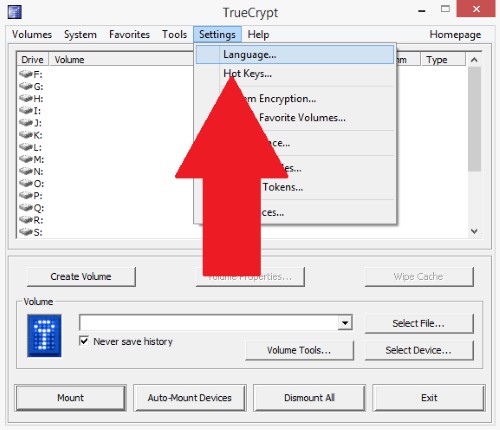
TrueCrypt: change language
Step 2: hard disk encryption with TrueCrypt start
- Click above in the menu bar on the "System" and select the Option "System Partition/drive to encrypt" (see picture). Then a small window will open.
- Select the encryption method to "Normal" and go to "More".
- You have to choose between the options "encrypt Windows System Partition" and "Whole drive encryption".
- You are not a security fanatic who is enough to Encrypt the Windows Partition. For the maximum security of your data, you should encrypt the entire drive.
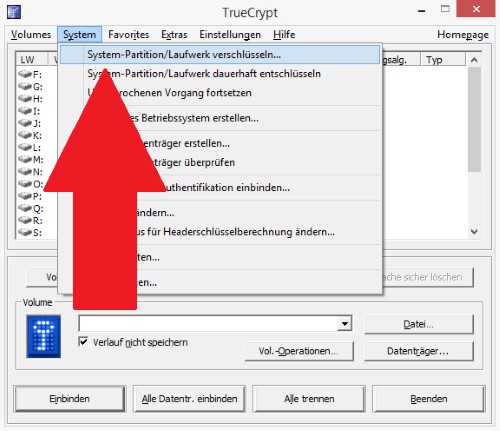
TrueCrypt: encryption start
Step 3: encryption method select
- You now need to select an encryption method. You're not familiar with the topic, we advise you to use method "AES". This is safe and is also used by US authorities. "Serpent-simple tow fish applications-AES" is the safest but also the slowest type of encryption.
- Then set a password for the System Partition. Take a really secure password. You can use big and small letters, Numbers, and special characters. Do not use words found in a dictionary. Most important: the longer, the safer.
- TrueCrypt now creates random data for improved encryption. While the Numbers and letters fly through the display image, you should move your mouse as back and forth across the screen. The good news is that the program even better encryption.
- Then you of the main and the head key will be displayed. This does not have to be observed by them, however.
Step 4: the recovery CD from Windows 7 create
In the next step, you will be prompted to create a rescue CD. So you can start your System if the Windows or the boot loader of TrueCrypt are defective.
- First of all, choose a location for the CD-Image (Image). Click on "Next", it will be created there.
- The Image you need to save in a safe place. To do this, use either a USB Stick, an external hard drive or a CD.
- Know you not how that works, or you have a suitable program installed, you will find a guide to Burn the ISO file with the free CDBurnerXP.
Step 5: completing the encryption process with TrueCrypt under Windows 7
It is offered to you now is the "secure delete" of your hard drive. The process can take a very long time, since the System copies the Partition for a short time, the location is overwritten and the Partition is re-inserted. They reject the secure Delete, professionals can circumvent the encryption however.
- You choose the "secure Delete" or skip the process with the Option "Without".
- Then click on the "Test" Button starts Windows. After you have entered your password correctly, the System Partition is ready to Encode.
- Click on the Button "Encrypt" will start the process. Depending on how full your disk is, the process may take several hours.
- The process is completed, you will receive a message about the successful execution.
By the way: With TrueCrypt you can also use your Dropbox storage to encrypt.