
That's why Windows 7 could not find any Updates
- Date and time: Only when date and time are set correctly, Windows can find the Updates. With wrong data, you can not make contact to the Update servers. A suitable guide, see the practice tip "Windows: time and date check".
- Internet: Is the Internet connection very slow or unstable, you can find and install Updates.
- Drivers: Have you installed a new driver, it can also be a Problem. Already, a restart of the computer can help here.
Windows 7 does not find any Updates
Windows Update repair
Also the Update program of Windows may be corrupted. A solution s'with Fix-It-Tool.
- Download the free Fix-It Tool for Windows Update from the Microsoft website.
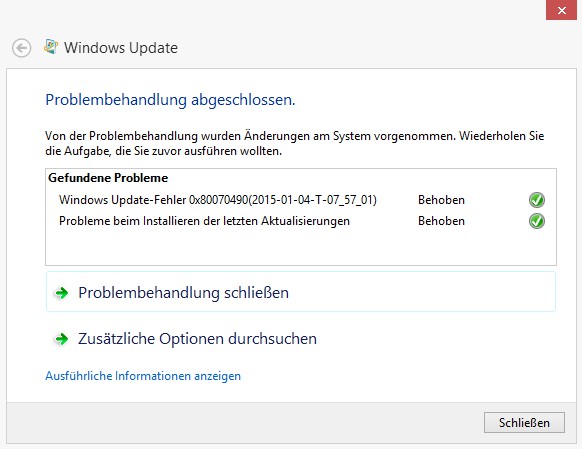
- Launch the Tool and click on the "Next" Button. Windows will now search for problems and solves them.
- In the connection, you will see if Windows could find the problems and whether these are resolved now.
Windows Update repair
Windows 7 Update Problem Update fix
The Update Problem for several months and has been resolved by the latest updates. Because Windows Update does not work, however, you need to install the updates manually.
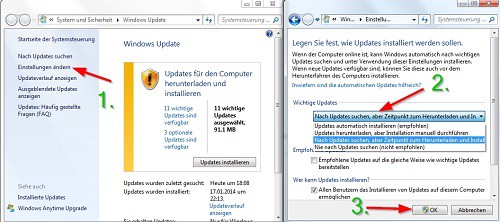
- To do this, open the control panel and select, under the category "System and security", the "Windows Update".
- Click the change the left to "settings" and select the Option "Never check for Updates (not recommended)". You restart your Computer.
- Download now in the next paragraph linked Updates piece by piece and install it by double click.
- Restart your Computer again and reset the Option to search the Updates back to the original state.
- Search for Updates, it should run the process much faster. Then, install all the important Updates for Windows 7.
Windows 7: disable Updates
Windows 7 Updates download manually
Note: The following Updates are sorted according to the 64-Bit and 32-Bit. You do not know which Updates you need, read the following practice tip to the difference between 32 - Bit and 64-Bit. Do not change the Installation order of Updates.
- 32-Bit: KB3078601, KB3087039, KB3109094, KB3145739, KB3168965, KB3185911
- 64-Bit: KB3078601, KB3087039, KB3109094, KB3145739, KB3168965, KB3185911
Should everything nothing help, can you a system restore your Windows 7 to perform. Also you can check the Updates under Windows to manually install.
Should you individual help for Troubleshooting your problem, then contact the experts in the CHIP Forum.





