
Restore point in Windows 10 create
- Click in the taskbar on the Windows search and type in "restore point".
- Then, you decide the results of the Search "create restore point".
- A new window will open. There you have to click on the tab "computer protection" on the Button "Create".
- This should be grayed out, first select a disk from the list and click "Configure".
- Enable the Option "system protection enable" and save your settings with "OK". Repeat these steps for all connected hard drives and partitions.
- You can then set up a restore point using the Button "Create".
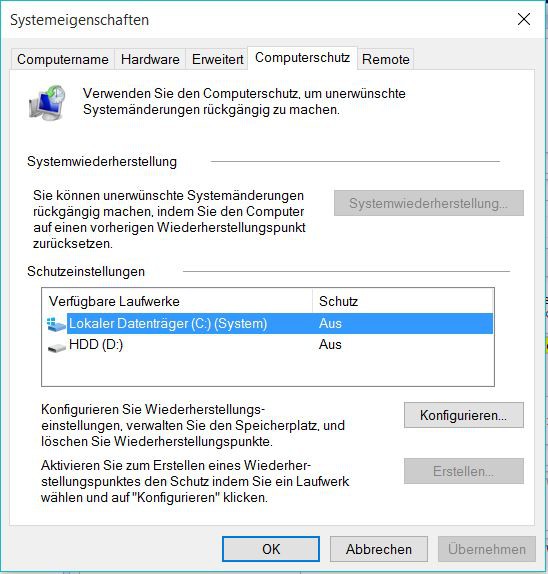
Restore point in Win 10
Still safer than a mere restore point is a Backup. As you have all your data in Windows 10, we tell you why on the next page.





