
Data with Windows 8 sync
On the control panel, you can synchronize libraries and other personal folders:
- Open control panel and go to "backup copies of your files with file history save" in the tab "System and security". Alternatively, you can search for it by typing "backup copies" while you are on the start screen and left click on "settings".
- It is displayed in a standard configuration. When you are satisfied, simply press the ' on ' button and observe the following steps.
- Go left on "select drive" and browse to the external hard drive that you want to use for the backup. You want to use a hard drive in your home network, select add this under "network address". Then confirm with "OK".
- Click exclude to the left of "folders" to sync particular directories. This can be useful, for example, if a folder too much memory would need to take place on the external hard drive or just is no important data in it.
- In the "Advanced settings" you can set how often to synchronize and old versions of each file to remove.
- You can also click on the home page of the "file history" to "Turn on" to start the synchronization.
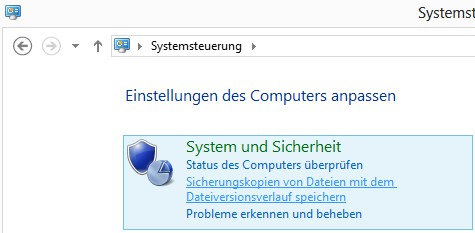
Sync under Win 8
Windows 8-restore your backed up data
On the home page of the "file history" you will find in the menu "restore Personal files". Here you can view the stored versions of the file on the external hard drive and you wish to restore.
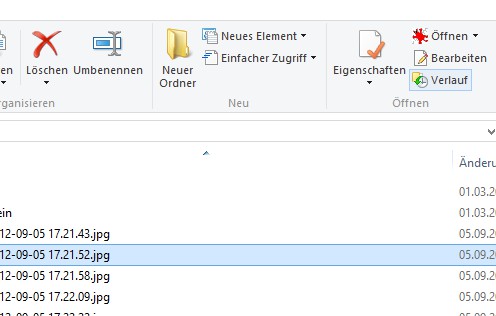
Restore data
For individual files it is even easier:
- In Explorer, find the file you want to restore an older Version.
- You select with a click and select the Start menu, the Explorer, the Option "history". Now you will see all the existing older versions of the file.
- With a click on the green arrow below you points to the Version shown on the original location here. With the arrows you move through the versions.
This Feature is only included as of the Windows 8 operating system. Under Windows 7 or older versions of Windows you can use the free Tool "free file sync" to use.





