
1. Partition tool in Windows 7 open
- Click on the Windows 7 user interface on the Windows icon at the bottom left and select in the popup menu the entry "control panel".
- From there you get to the Partition Tool. In the open control panel, click on the entry "System and security".
- Now look for the entry "administration" and click on the sub-item "hard disk partition, create and format". In the opened window "disk management", you can edit the Windows 7 partitions.

Partition tool open
2. Space deduct for new Partition
Now a new Windows 7-set up Partition, you must first deduct a little space from an installed hard drive.
- In this case, click with the right mouse button on a drive, of the you storage want to deduct space in order to use this for a new Partition (usually drive C:).
- Then, select the item "shrink Volume". You now have to (wait, depending on the size of the hard drive) something.
- Under "space To shrink in MB" you need to specify how large the new Partition will be. Then click on the "zoom Out".
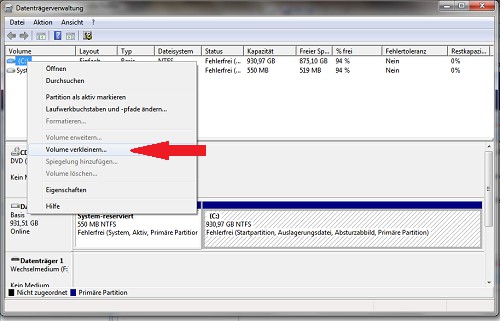
Shrink Volume and create Partition
3. Partition with Windows 7 create
According to a further, short processing time, the new Partition will be displayed. However, it can not be used.
- Click with the right mouse button, and select from the context menu, select "New simple Volume".
- Now you specify the new size. Windows 7 is here as the default is already the whole of the available capacity. It's a click on "More enough".
- To assign the Partition or the drive a drive letter. Because Windows 7 purports automatically to the next available free letter, you simply click again on "Next".
- Next, you determine the type of the format and the name for the drive or the Partition. At the time of formatting you have a choice between "NTFS", "Standard" and "quick format". What is the entry you choose is largely up to you. It's the "quick format is usually sufficient", should be the hard drive is still relatively new and unused. But she is older and crammed with data, we recommend "NTFS" or "Standard". Also, in the drive name it is up to you whether you assign a name, or the field worked can. Windows 7 then automatically assigns a name.
For more practical tips for Windows you can find here.




