Extensions via the Extension Manager in Libre Office install
Libre Office with the Extension Manager. Through this, you can manage all the installed add-ons or new Extensions to add. And that goes as follows:
- Click in the menu bar of Libre Office on the "tools" (third entry from the right) and select "Extension Manager" (the fifth entry from the bottom).
- In the Extension Manager, click on "Download more Extensions from the Internet..." (bottom left in blue font). You will be redirected to the page with all the Extensions for Libre Office. Here you can search all available Extenions viewing.
- To install Extensions, you must first download them. Click on the extension (Extension) that you want to download. Here, click on "Download [Name of extension] for All platforms", and save it in any directory.
- Go back to Libre Office. In the normal case, the Extension Manager should be opened. If not, open it again.
- Click in the Extension Manager, click Add (below the middle). Navigate to the directory where you have stored the extension. Select the extension and click on "Open".
- The bottom right of the Extension Manager, you get the message that the extension is added (installed). This usually takes a couple of seconds.
- Once the Extension is installed, you can use this.
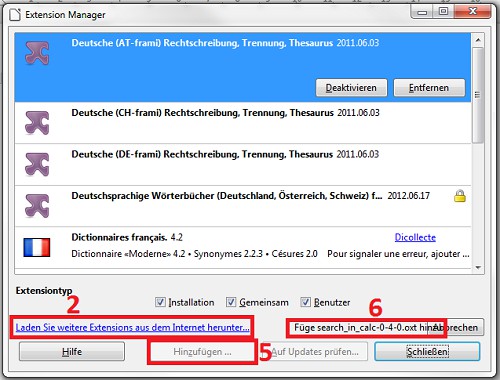
The Extension Manager in Libre Office
This practice tip refers to Libre Office 4 on Windows 7. The latest Version of Libre Office you can here download.