
Preparation: IMAP in Gmail enable
You want to use for your Gmail account in Thunderbird IMAP, you must enable the Protocol may be first in your Gmail account:
- Call Gmail in your web browser.
- Top right, click on the gear icon, then select "settings".
- Click on "forwarding and POP/IMAP". After that, select "enable IMAP" and confirm with the Button "save Changes".
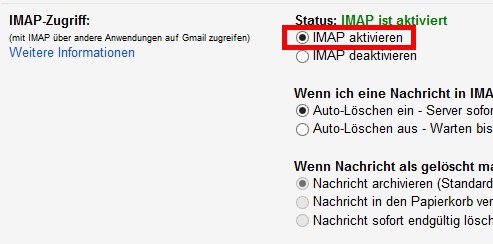
IMAP in Gmail enable
Gmail account in Thunderbird set up
No matter whether you want to use the IMAP or POP3 Protocol: the setup is similar in both cases:
- Click in the menu bar of Thunderbird, click on "file" → "New" → "Existing account..." to start the account wizard. You may also need to show the menu bar first by right-clicking on the main toolbar.
- Now enter your name, Gmail address and your password. Then click on "Next". Then Thunderbird is looking for the correct settings automatically in the ISP-database of Mozilla.
- You want to use the IMAP Protocol, select "IMAP" for the POP3 Protocol, select "POP3". After that, click "Finish".
- Confirm the security exception, the setup of the Gmail complete account.

Gmail in Thunderbird set up
The differences between the IMAP and POP3 Protocol we have in the next practical tip for you.





