
Bluestacks install on the computer
The Installation of Bluestacks is completed easily and quickly. The program is still in Beta-Phase, running under Windows but already quite reliable. However, it may occasionally crash when you run Android-Apps.
- Do you use Windows XP, Windows Vista, Windows 7, or Win 8, you will be directed here to the current Version of Bluestacks. The MacOS Version to get you here.
- After you have completed the Installation successfully, you can immediately work with the program.
- Bluestacks is linked automatically with the Autostart. The entry can be removed easily, or at least disable it. How to get the best manage, you can learn here. You can disable the Autostart, you also get no messages on the status bar of your computer and more.
- By using the tile "1-Click Sync" you can synchronize data with your Android Smartphone or Android Tablet. This is also about the Cloud connection, you can find in the settings.

Android Emulator Bluestacks
Google account in Bluestacks
In order to download the Android Apps from the Google Store, you need to create an account with your Google data.
- To do this, go into the settings, via the Gear in the status bar at the bottom right.
- In the settings you can change the usual modifications, for example, in the case of date and time, language, keyboard settings or the App size, as well as not needed anymore, and delete Apps.
- Select the Option "manage your account".
- There you click on "add account".
- Then enter your Google data.

Jorte Calendar under Bluestacks
The first steps with the Android Emulator on Windows
The interface of Bluestacks is very clearly designed, so that you find yourself intuitively. If you want to Android download Apps, you have various options available.
Android Apps download
1. Install Android Apps using Bluestacks
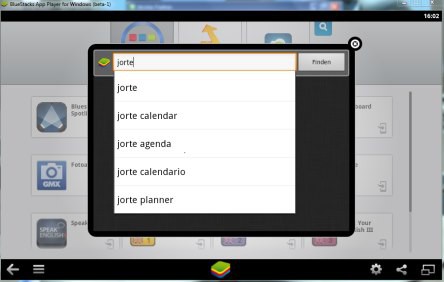
- To do this, either click the tile displayed as "App search" or the magnifying glass in the upper window of Bluestacks.
- Enter the name of the Android App.
- After a few letters Bluestacks in a Drop-offers-Down-menu already some of the proposals.
- Select the appropriate App.
- The Android Emulator shows you the Stores, from where you get the App you're looking for can download.
2. Android Apps on the Google Play Store to install
- The procedure is the same as a "normal" Android.
- Log in to the Play Store to.
- Choose the appropriate App.
- Google checks the compatibility with your Android - in this case, the Emulator.
- The App is Bluestacks compatible, you can download the Android App.
As you Android Apps via your Web Browser open, we will show you in this practical tip.





