
Ads by Positive Finds from your PC remove
- Positive Finds uninstall: Open the control panel and sort the list of installed programs after the installation date. Remove the entry "Positive Finds". Detailed instructions can be found in the practice tip "of Windows, uninstall programs".
- AdwCleaner: Also if you like the program in the control panel removed, it remains in the links. You start the program, run the short Scan and then remove all of the finds.
- Junkware Removal Tool: Results of the AdwCleaner to the hoped success, set the Junkware Remvoal Tool.
- Malwarebytes Anti-Malware: For the removal of Positive Finds is this Software not necessary, but it will search extremely reliable virus Scanner on your system to other threats on your System.

AdwCleaner: Positive Finds delete
Positive Finds from your Browser: Internet Explorer
Next, you need to remove Positive Finds from browsers:
- Start Internet Explorer and in the menu select "manage Add-ons" (on the settings cog in the top right).
- Select in the list on the left of "toolbars and extensions".
- Look for "Positive Finds" or similar entries, click with the right mouse button and select "Disable" or "Remove" (depending on the Version of your browser). You restart the Browser.
- If Ads by Positive Finds settings such as the home page or the search function of your browser has changed, reset the Internet Explorer back.
- The Adware is also in the links. How to remove the radicals there, you will see in our Video.

Positive Finds from IE remove
Positive Finds from the Browser: Mozilla Firefox
- Start Firefox and open the "Add-ons" in the menu at the top right (see image).
- Select "extensions" and look for entries such as "Ads by Positive Finds".
- Click on "Remove" and restart your Browser.
- If the Adware the Firefox settings changed, reset the Browser back.
- Be sure to check out their links with the Browser (see Video).

Positive Finds on Firefox delete
Positive Finds from the Browser: Google Chrome
- Start Chrome and click in the menu at the top right click "Settings" or "settings".
- Select now on the left side of "extensions" or "Extensions".
- You can now delete all of the entries, the "Positive Finds" in the name. To do this, click on the small trash can.
- If the Adware the Chrome settings changed, reset the Browser back.
- Also in the links with the Browser can be remnants of Adware. As you remove these, you will see in our Video.
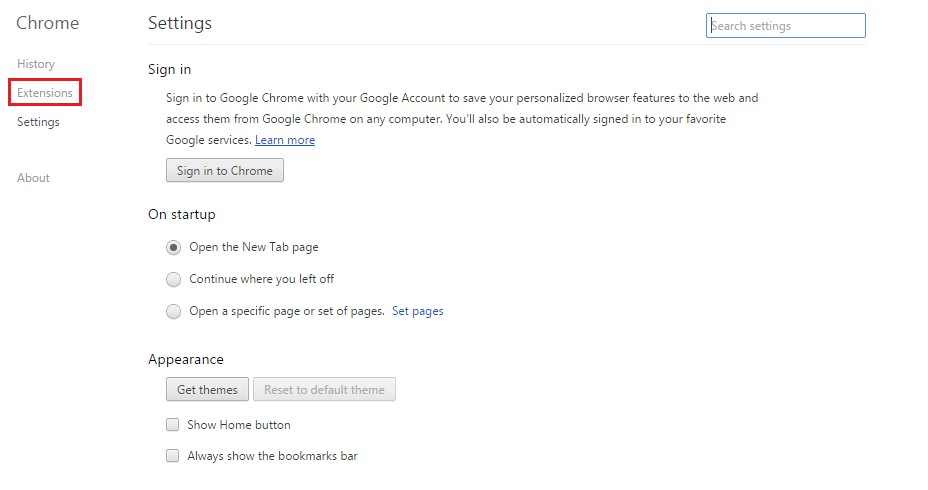
Positive Finds from Chrome remove
Have you been able to despite all efforts, the Adware won't remove it? In Expertiger help you specialists at the Hotline 030 2237 98 40 in your individual PC problems. Costs are incurred only at the time of their approval.
In the next article, we will show you what anti-virus Software in the case of Stiftung Warentest was awarded.





