
Charts in Powerpoint to animate - so it works
In order to not present at a presentation to your audience the charts with a single click, and perhaps overwhelm, you can animate the charts to your Liking. The information you show, individually, step-by-step. So you need to do:
- You can choose the item 'Insert' and then click on the button 'diagram'. There is a window in which you can now set the desired diagram type selection. Confirm your selection by clicking 'Ok'.
- In the next step, an Excel spreadsheet, in which you need the data for your chart type will open automatically. Enter your data and categories, and to confirm your entry. The chart is automatically created. If you want to enter less data, or categories, you can change the selection on the marker.
- Select on the tab 'animation', click the chart, and then click 'add Animation. Here you select how you want the chart to appear. The chart has now been added to an Animation. As soon as you click, it will appear in your presentation.
- So you can animate the individual bars and their presentation, loosen up, you must now select the 'animation area' beside the button 'add Animation'. The area opens to the right of the displayed slide, and select the small arrow next to your added Animation. Open the 'effect options' with a click of the mouse.
- Under effect options, you can make the settings for your presentation. In the area of the 'chart options' you can set the power on sequence of your bar, for example, to a category or to a data series. Select the desired options.
- Also, under the effect options you find the option 'display duration', there you can set the Start and the delay of the individual beams. For the optimal settings, you must restart the presentation, and check whether you need to shorten the set time or longer. It depends on the bar size. By clicking on the 'Ok' button to confirm your selection and your charts are animated.
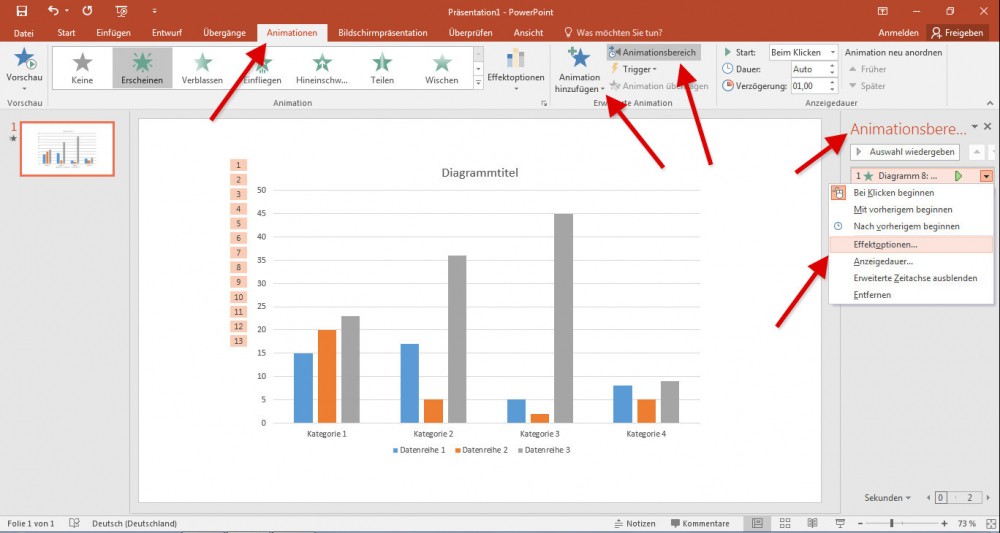
Charts animate - Powerpoint
In a further practical tip we have the 10 best tips for Powerpoint presentations, put together especially for you.





