
Outlook data Backup
In all newer versions of Microsoft Outlook , it is very easy for the data to back up and restore a Backup.
- In Outlook, click the top left tab "file" and select Open in the following window the field "and the Export".
- Then click "Import/Export" to open the wizard for Import and Export (see image).
- Select in the Import/Export wizard, select "file export" from the list and click "Next".
- In the following list, you must "Outlook data file (.pst)" to select.
- A window, in the select the folder to be exported opens. Here you can select the main folder and click on the Option "subfolders include".
- In the following window you must specify a location for your Backup file. Now the Backup is created. If you want to, you can add this with a password.
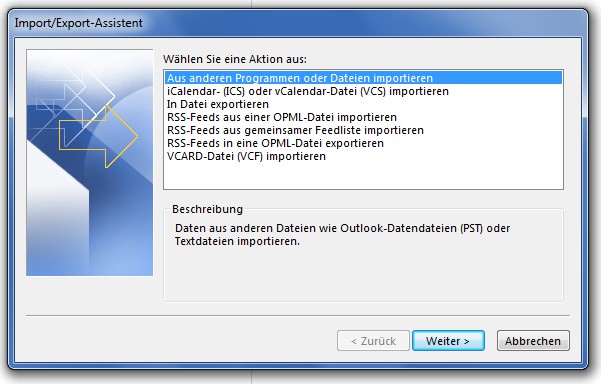
Outlook Export Wizard
Outlook: Import the Backup data
In the next practical tip we show you how to create a out of office message in Microsoft Outlook create can.





