
Find function in Excel: description and Syntax
With "FIND" you can find a specific string within another.
- In addition to FIND Excel knows FINDENB the function. This function is for languages with Double-Byte character set. This includes Japanese, Chinese, and Korean counting Korean.
- The function returns the Position of the searched character is found.
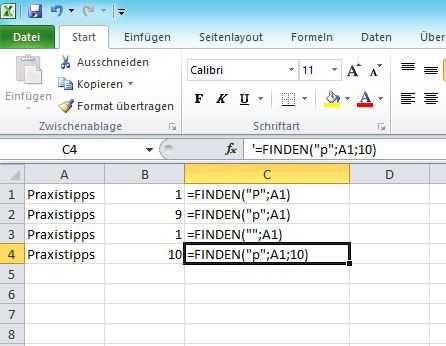
Find function in Excel
The Syntax of the command looks like this: FIND(find_text;Text;[Erstes_Zeichen])
- The search text is required and specifies the Text that you are looking for.
- The second Parameter Text is also required, and specifies the Text in the search text to be searched.
- Erstes_Zeichen is an optional Parameter and, if necessary, the Position from which the Text is to be searched for.
Excel: instructions for Find-function
The following properties of the Find function you should be aware of when using and note.
- The Find function is case - sensitive. FIND("P", "practice tips") returns 1 as a result, while FIND("p", "practice tips") 9 returns. Work around the entire with of the OR function.
- In the Find function no wildcard characters are allowed.
- If you want to ignore the spelling or wildcard characters, you should take the SEARCH function.
- If you are looking for an empty string"", there will always be a Match with the first character. FIND("", "practice tips") returns 1.
- If the string is not found, the error value #VALUE! returned.
- If the optional third Parameter is less than or equal to 0 or greater than the length of the search text, the error value #VALUE! returned.
- The function you can use in all Excel versions starting from Excel 2007.
In the next practical tip can you find the 5 best Add-Ins for Microsoft Excel.





