
Excel: legend entries rename
The legend can Excel in a few steps, it can be renamed. To do this, proceed as follows.
- Open your Excel document and click on your diagram.
- In the top bar you find the "chart tools". Click on the tab "design".
- Click in the "data" on the "select data"button.
- In the left window, you find the legend entries. Click on an entry and select "edit".
- Under "series name" you can rename the entry.

Excel: entries umbennennen
Excel: Horizontal axis label to change
Your values should not be shown as the legend entries, but as a horizontal axis label, you need a different approach.
- Open your Excel document and click on your diagram.
- In the top bar you find the "chart tools". Click on the tab "design".
- Click in the "data" button on the "select data".
- In the right pane, find the "Horizontal axis labels". Click on "edit".
- Now enter your desired names or values for the legend. Separate multiple entries with a semicolon.
- Finally, click on "OK".
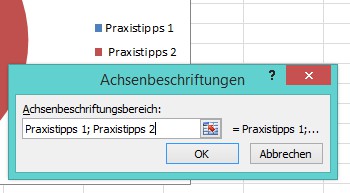
Excel: axis entries umbenenenn
This guide refers to Microsoft Excel 2010. As you several table sheets to print a page, we will show you in the next tip.





