Tip 1: Background updates in iOS 7 disable
- The Background updates, Apps can download data even when they are closed. Many applications slow down your System, even though they are not being used at all.
- You can disable the feature under settings -- > General -- > background app refresh.
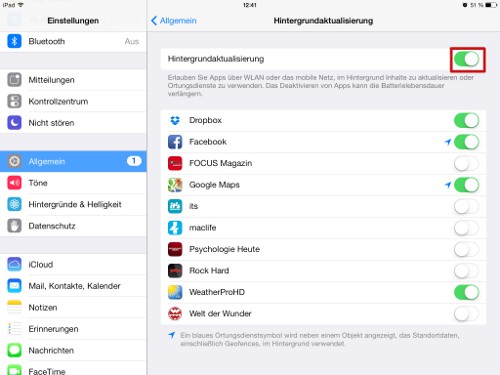
iOS 7: Background updates
Tip 2: The Parallax effect from iOS 7 to turn off
- You move in iOS 7, your iPhone, move your background image and App icons. This can not only be tiring for the eyes, but also neatly Performance cost.
- You will find the Option under settings -- > General -- > accessibility --> "motion to reduce".

iOS 7: Parallax-off effect
Tip 3: iOS 7 location services disable
- Especially on older Apple devices location services to ensure a great burden. The iPhone 5s, the iPad Air and the iPad mini the tracking of non-outsourced services on the second processor, so that the process falls into the weight.
- You should enable the location services only for Apps for which you need the function really. You can find the setting under "settings" -- > privacy -- > location services.
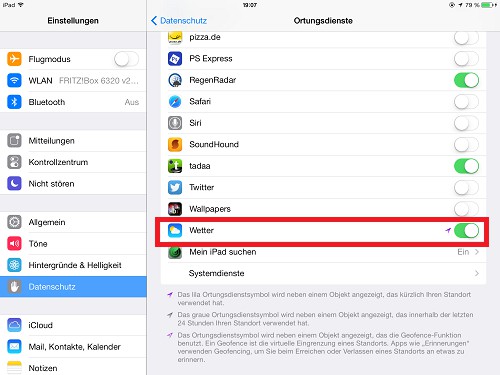
iOS 7: location services disable
Tip 4: Spotlight-narrow search results
- In the Spotlight search, you can search your whole device. Each Change is directly recorded in the System, when the search is activated. The Performance-Killer it is used by the fewest users, so they function safely disable.
- You can find the Spotlight search under "settings" --> "General" --> "Spotlight search". If you deactivate all the categories.
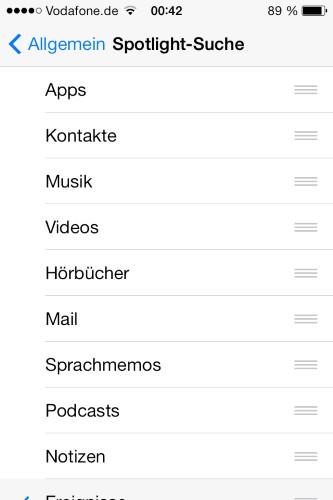
iOS 7: Spotlight search
Tip 5: turn off Automatic Updates
- The function of automatic Updates is enabled, it is always checked again, in the Background, whether updates are available. You will also be automatically downloaded.
- You can turn off the Updates under "settings" --> "iTunes & App Store".
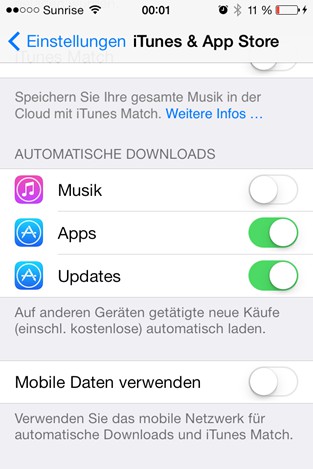
Turn off automatic Updates
How to use the screen rotation in iOS 7 disablein a further practical tip.