Firefox Browser update manually
- Click the top right of the screen to the menu Button.
- Over the question mark icon takes you to the "About Firefox".
- It is a new window, in the now after an Update is sought opens. A new Version is available, click on the corresponding Button.
- Then click on the Button "To Complete the update Firefxo restart" to install the Update.
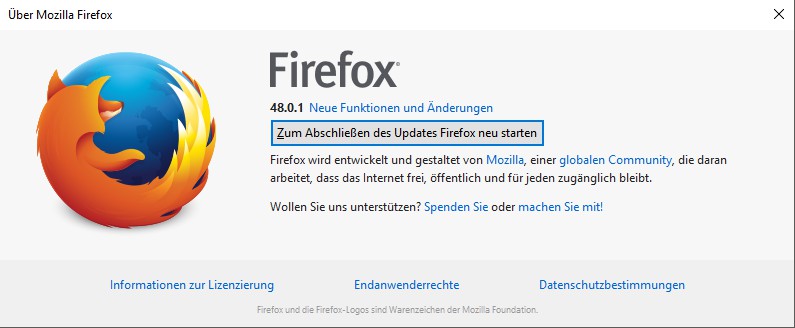
Firefox update
Google Chrome update itself
- Click the top right of the screen to the menu Button. This consists of three mutually transverse lines.
- Select in the menu below the "settings" item.
- Go to the left to the category "About", it will automatically look for Updates.
- An Update is available, it is downloaded and installed automatically. The next time you Start Google Chrome the latest Version is loaded.

Google Chrome update
In Internet Explorer to automatically install Updates
- Click the top right of the screen, click the Gear icon.
- From there you can select the menu item "Info".
- It is a new window in which you need to set the hook before the "New Version install automatically" opens.
- Confirm the subsequent security query with "Yes" and click on the "Close" Button. Updates are now installed automatically in the Background.
Internet Explorer update
Safari Browser update
- Updates for Safari are available, this information will be provided in the stand-alone program "Apple Software Update".
- There you can update other Apple products like iTunes or QuickTime. To do this, select the program from the list and the bottom right, click on the Button "object to install" (see image).
- The Apple Software Update, click the Windows Start menu. Type in the name or select the program from the list.
Safari update
Opera: install Updates manually
- Click the top left of the screen on the button "menu".
- Select in the menu at the very bottom of the "About Opera".
- As soon as the page is opened, it searches for Opera automatically check for Updates.
- An Update is available, it is downloaded and installed automatically.
Opera update
Microsoft Edge self-update
Microsoft Edge is always updated with Windows 10. Separate Updates in the Browser itself are not available.
- Open the Start menu and click on the Gear icon.
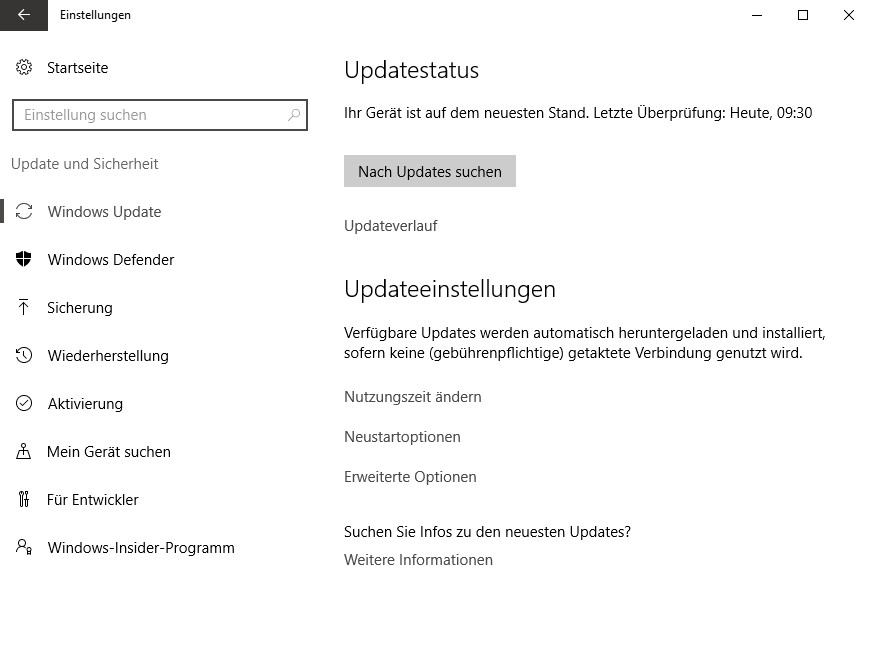
- Under the category of "Update security" to go to "Windows Update".
- New Updates for Windows and Edge are available, you can install it directly.
Microsoft Edge with Windows update
In the next practical tip we will show you how to use the Cookies in your Browser delete.