
Screen brightness is not adjustable
- Graphics drivers: In most cases, the Problem lies with the driver of the graphics card. Are you looking for on the website of the manufacturer for the latest driver for your video card and install it. As they succeed, says our photo gallery on the topic. Look also at Windows Update to see if there updates are available.
- Software: Have you recently uninstalled a Software related to the graphics card, it can also be the fault here. To many graphics cards an additional piece of Software that controls the Hotkeys.
- Control panel: the control panel can be found under the category "System and security" "power options". Here you can change both the energy-saving type, as well as the brightness manually.
- Workaround: some users will help for the meantime a little Trick. You can change the brightness in the control panel and put the Computer into sleep mode. In the case of Laptops, you need to collapse, for example, to the device. Turn on the Computer then on again, changed the brightness.
Dim the display manually
Screen in device Manager, re-enable
In some cases, it is possible that Windows takes the screen more than enabled true. As a result the screen no longer works although, a communication on how to Change the brightness of the screen is possible.
- Simultaneously press the keys [Windows] and [R], so that the command "Run" will open.
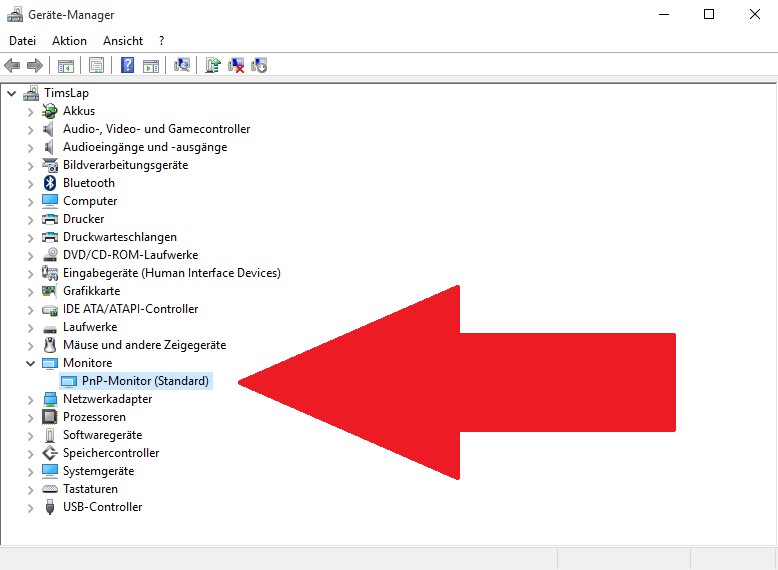
- Type devmgmt here".msc" and confirm with "OK". Then, the device Manager will open.
- Here you select the category "monitors", you will find a small exclamation mark.
- Click on the Monitor with the right mouse button and choose the Option "Activate".
- Then the screen brightness as usual regulate.
Device Manager: Monitor enable
Windows: Old graphics card-drivers
Just when new drivers for grafic cards, or Windows gets a major Update, can help with the Installation of the previous driver.
- Open the device Manager and look in the category "video card" is the currently used graphics card.
- Click with the right mouse button on the entry and select "update driver software".
- Then select "browse my Computer for driver software" and "from a list of device drivers on my Computer".
- The current driver is causing problems, select an older Version and click on the "Next"Button.
- After the old driver is installed. The Problem should not be solved, you can update again to the latest Version.
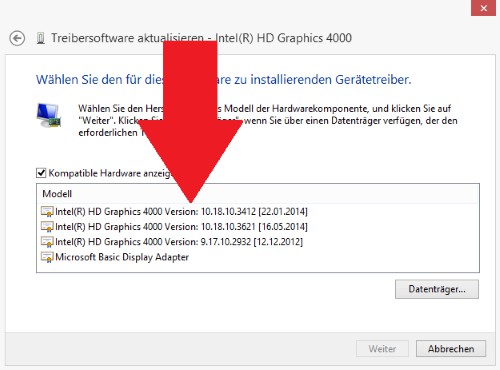
Windows: Old Graphics Driver
In the next practical tip we will show you how to use the screen lock Windows.





