1. Phone restart
A reboot of the mobile phone is often the first approach, since this helps in many cases. Restart your phone and check whether your mobile phone is now detected. This is not the case, you can proceed with the following steps.
A restart helps in many cases
2. The USB cable
To exclude that it was due to a defective USB cable, you can test if it exists with a different USB cable. The fault should not lie on the cable, you can proceed with the next step.
3. The phone to another USB Port of your PC / another PC to connect
It should not be on the cable, you can check, whether an error on the USB Port to which you have your phone connected to the PC, there is. Simply connect the phone to a different USB Port. Alternatively, you can connect - if another PC is present - your phone to another PC. This measure does not solve the Problem, continue with the next step.
4. The phone setting up new
All other Attempts should fail, it is best to your cell phone new.
- Be sure to back up before the Reset, all your important and personal data, as these will be lost! If you have data such as music or photos to your PC copy want, you can click the program AirDroid use.
- A tutorial on how to make your cell phone a new placement can be found here.
Factory data reset
5. Installing the driver on the PC
The Problem must not necessarily be from a Smartphone, even a broken driver can be responsible. Therefore, you should re-install the driver:
- Make sure that the USB Debugging is enabled and connect your Smartphone with the PC.
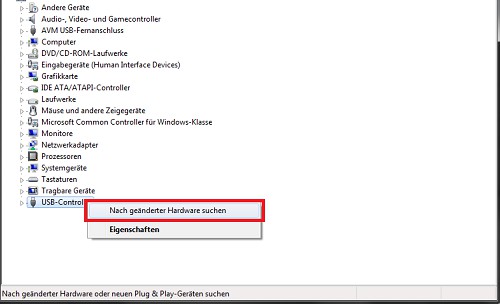
- Then press the Windows Button and type devmgmt in the search ".msc" to open device Manager.
- Now click on the entry "USB Controller" and then right-click on the driver that is displayed on your smartphone. In some cases, you will find listed the driver extra, for example, as "Samsung" or "Android Device".
- Select "Uninstall" and connect after Uninstalling your Smartphone to the Computer again.
- Now wait until your Computer has installed the latest driver Version.
Driver re-install
6. Windows 10 does not recognize MTP Devices any more
Since the Anniversary Update of Windows 10 messages, devices that want to connect via MTP will not be detected accumulate. With these simple steps, you will get rid of the Problem:
- Connect the phone via USB to your computer.
- You open then the device Manager. You can find the program by typing "devmgmt.msc" into the Windows search.
- Your device will now appear with a yellow warning sign under "Portable devices".
- Click with the right mouse button on the name of the device and select "update driver software".
- Then select "browse my Computer for driver software" -> "search from a list of device drivers on my Computer".
- Click in the list on the "MTP USB device" and confirm with "Next". Then install the correct driver, and your device is as usual suitable.
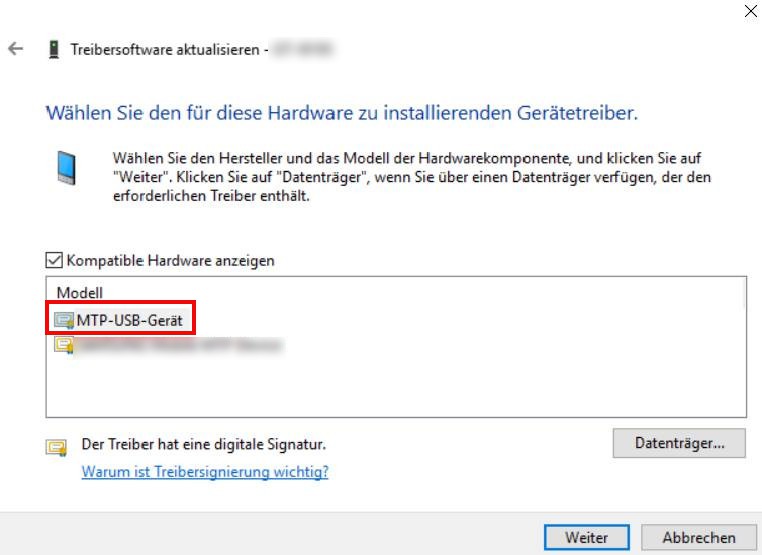
MTP driver install
If all steps fail: mobile phone repaired
All of the previous steps do not help, there is probably a Defect on the USB Port of your mobile phone. Within the warranty period such a Defect should be repaired free of charge; outside the warranty period, you will be made a cost estimate. Talk to your dealer, to take further steps to clarify. Also here applies: back up all data you do not want to lose!