
Windows Explorer: the Dark Theme to activate - how to
At the recent Windows 10 versions you can use instead of the classic Explorer, the Explorer in Dark Theme.
- To Activate, click in the bottom left of the Windows Logo, and then click the small Gear icon to enter the settings.
- Then select the category "personalization".
- Click on the item "color" and scroll to the right in the window further down.
- Here you can select now select "Standard-App-mode" > "Dark". Then you will be shown the Explorer, and other Apps from Microsoft-in-the-dark mode.
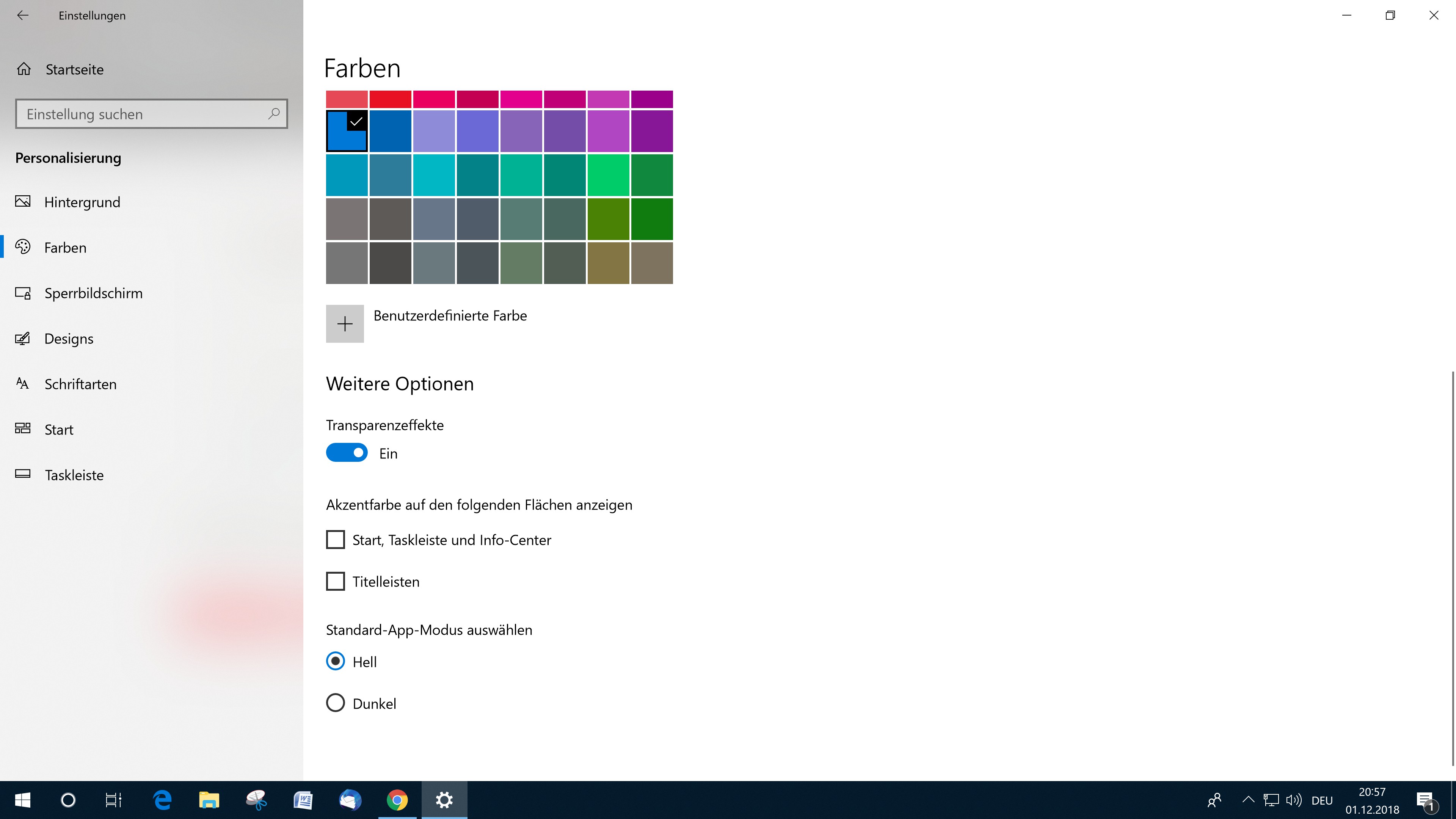
Windows: the Dark Theme to activate
(Image: Screenshot)
Alternative Dark Theme to activate
If you have the Dark Theme of Windows Explorer should be a bit to dark, there is still a practical Alternative.
- Download the Tool mach2 in the appropriate Version (32 or 64 Bit) and extract the ZIP file.
- Go in the extracted folder, click on the address bar of Explorer and type "cmd.exe". Now opens the command prompt with correctly set path.
- Now enter the command "mach2 enable 10397285" (without the quotes), press Return to confirm and restart Windows.
- Finally, you can enable the new Dark Theme as well as the classic in the settings.





