
Computer that is running Windows 8.1 reset to factory settings
- Move the mouse to the upper-right or lower-right corner of the screen, so that the Charm Bar opens.
- Select at the very bottom of the "settings" and then "PC settings".
- Via the menu item "Update/restore", click the Option "recovery" to the desired function.
- Under "remove Everything and reinstall Windows" find the Button "get started".
- You have on your Computer a Recovery Partition, Windows detects this automatically and uses it to Reset. This is not the case, you will be prompted to the Windows 8 DVD inserted.
- You will be asked which disks you want to put back. Here you have the choice between the Partition on which Windows is installed, or all partitions. In order to secure your data conveniently, you can copy them for example on the hard disk on which Windows is not installed and only the Windows Partition reset.
- Now they will be made prior to the decision, whether you want to clean the drive completely. Click "Just remove my files", these can be restored later if necessary. When you click on the "drive cleanup", will overwrite all of the contents. The Option "Just remove files" runs much faster and is recommended if you want to use the Computer again after the Reset and not sell.
- You are finally asked whether you want to perform the operation really. Click on the "Reset" Button. Now your Computer will restart. The process can take several minutes.
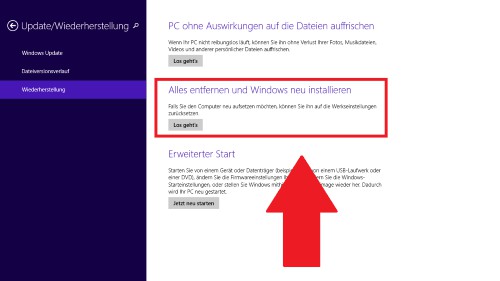
Win 8.1 - how to reset the Computer
Perform the procedure on a Laptop, so connect the device to the mains, to avoid a crash. Do you still have Windows 8, you will find a similar manual.





