Step 1: hard drive partitions under Windows 8 ads
- Simultaneously press the keys [Windows] and [R], so that the command "Run" will open.
- Type diskmgmt here ".msc" and confirm with "OK". The data is then open disk management.
- Below you will see all hard drives in a list and their partitions in a row.

Windows 8: Disk Management
Step 2: drive in Windows 8 new partition
You want to create a new Partition, you need to zoom out first to a larger Partition. Due to the reduction of storage space is free, which is then assigned to a new Partition. This process can be repeated as often as desired.
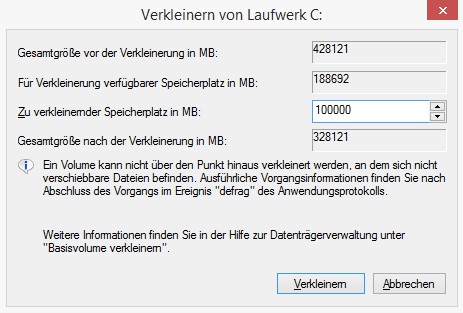
- Click with the right mouse button on the desired Partition (usually C:) and select the Option "shrink Volume".
- Now select the space you wish to shrink the Partition. This is then assigned to the new Partition.
- Confirm Out the operation with the Button "" and wait a Moment. Then, the memory appears in the table as "Unallocated".
- Click on the free space with the right mouse button and choose the Option "New simple Volume".
- Confirm the following query is always "More" and then "Finish". Only the name and the drive letter of the Partition you should change.
- After the new Partition is created and is ready for use. This process can be repeated as often as desired.
Partition under Windows 8 to create
In the next practical tip we show you how to separate partition cloning.