
Automatic defragmentation of the SSD to disable
SSD hard drives need to be defragmented, unlike HDD disks. The service life may decrease this even. Turn off the function, therefore:
- Click on the buttons "Windows" and "E", so that in Explorer, the "my Computer" opens.
- Click with the right mouse button on the drive and select "properties".
- Under the tab "Tools" click "defragment Now". Select the top right "schedule configuration".
- Click on the Button "disk select" and remove the check in front of the SSD. Then close all Windows with "OK".

Defragmentation off
SSD optimization: Prefetching disable
In the case of HDD-disk files to be sorted, it needs to Start, so that they are available more quickly. In the case of SSD hard drives, the is not necessary.
- Simultaneously press the keys "Windows" and "R", so the command "Run" will open.
- Type in there "regedit" and click "OK". It is the registry Editor will open.
- Navigate to the right to the following path: "HKEY_LOCAL_MACHINE\SYSTEM\CurrentControlSet\Control\ Session Manager\Memory Management\Prefetchparameters".
- Double-click the entry "enableprefetcher" and change the value to "0".
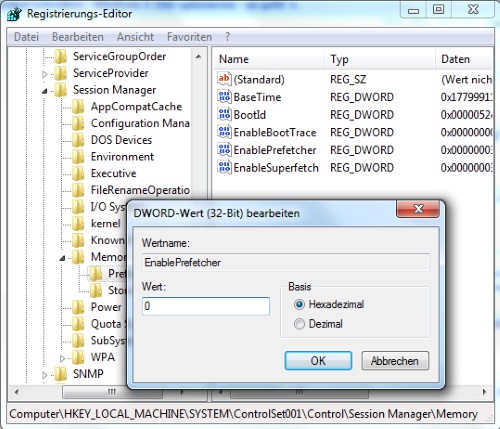
Prefetching disable
Disable hibernation
The Computer from the sleep state and wakes up again, will be charged to the SSD with a huge write access. The file hyberfil.sys is always loaded and has the size of the memory. This has a strong impact on the lifetime of a SSD. Tip: Turn off the hibernate and the PC instead.
- Simultaneously press the keys "Windows" + "R", type "cmd" and click "OK".
- Enter the command "powercfg-H off" and press Enter to confirm.
- The hibernate is disabled, the file hyberfil.sys deleted. So there are also a lot of free space you create by the way space.

Enable hibernation
Timestamp function and DOS file name to disable
These two functions block capacity of the SSD, and are not actually needed. The Timestamp function stores the file when it is opened, edited, and created. In addition, each file has a DOS-compatible file name. Since nobody actually uses more DOS-based programs, can be this feature turned off.
- Simultaneously press the keys "Windows" + "R", type "cmd" and click "OK".
- Enter the command "fsutil behavior set disablelastaccess 1" and press Enter to confirm.
- You make then the Same with the command "fsutil behavior set disable8dot3 1".
For more tips and Tools to SSDs you can find in this article.





