
Windows 10: the BIOS (UEFI) to open the settings
Note: Newer computers do not have more than a BIOS, but the UEFI. Where exactly lies the difference, we show you in this practical tip.If you can't find the settings for this paragraph in the case of your PC, follow the instructions in the third paragraph.
- Click on the Windows icon and select the Start menu, "settings".
- Under the category of "Update & restore" you can find the item "restore".
- Then, under "Advanced Start" on the Button "restart Now" will be started in the UEFI.
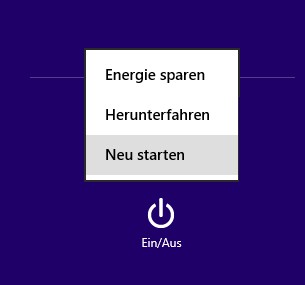
The BIOS under Windows 10 start
Windows 10: start the BIOS quickly and easily
- Have you gotten your Computer just upload, go to the Login screen.
- Do not enter your password, but you click the bottom right of the Power Button.
- Keep the shift key pressed and click on the Option "restart". Now the UEFI will open.
Windows 10: the UEFI open
Windows 10: the BIOS by key combination to start
You can use Windows 10 on an older PC, the BIOS only one of the following call.
- When you start your Computer, you only have a few seconds to start the BIOS. It will only open when you press at the right time the right button.
- Depending on the manufacturer, a different key is required. Press the Start on F1, F2, F8, F10, Del, or Esc. Starts Windows instead of the BIOS, start Windows again and try again.
Expert tip: The best laptops for Windows 10
In comparison to its predecessors, Windows 10 will start very quickly. But even here, you can tickle still a lot of from the operating system, provided you have the necessary Hardware.
- But, in the meantime, anything other than expensive. Powerful Laptops with good facilities and relatively high Performance is available from around 250 Euro.
- In a special article, we also present you a real Highlight for under 500 Euro in more detail before.
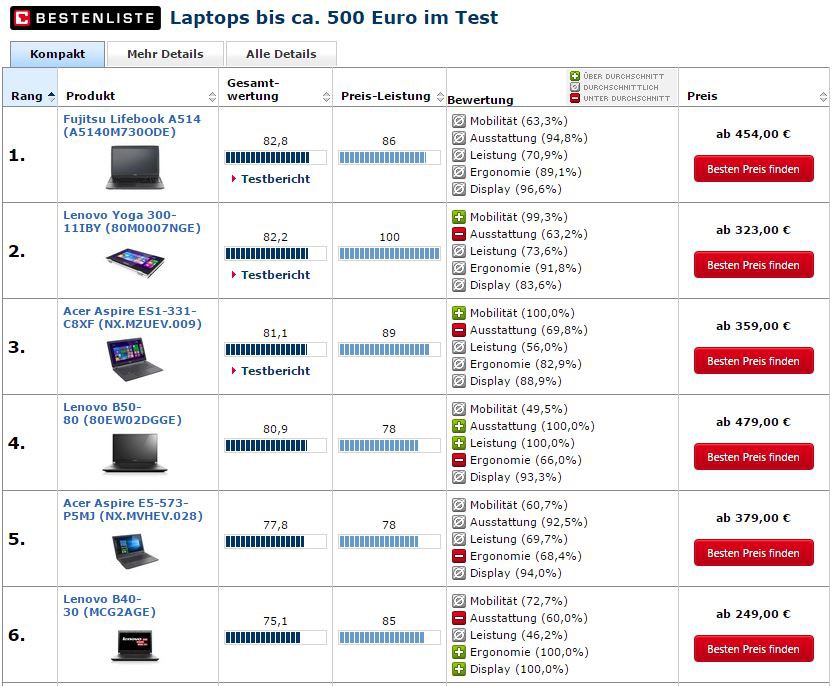
Laptops: More Power for Windows 10
For more questions about Microsoft Windows 10 be answered by the experts in the CHIP Forum.





