
Solitaire, Minesweeper, Mahjong & co.: Windows, activate games that have just
- In fact, all the missing games are, in fact, also under Windows 7 on Board. Via a System setting, the Games are disabled by default, and are thus not in the games list.
- And you have to change with a few clicks in the control panel. You can open this by clicking on "Start" and "control panel" in the system settings.
- Type in the search box at the top right of the search phrase "Windows Features" and wait a Moment. Select from the search hits, the result is "turn Windows features on or off". For this you need Administrator rights.
- After a short loading time you should open a new window with many entries. Scroll to the "games" and open it by clicking on the Plus Symbol in the list with all of the included Games.
- All of the desired games enable finally, by clicking on the small Checkbox next to the respective title. Alternatively, you can activate all the games, by checking the Checkbox in front of the point of "games" with a hook.
- You will now be returned to "Start" and "games" to the games list, you should see all the selected games available. These start very simply by the click of a mouse.
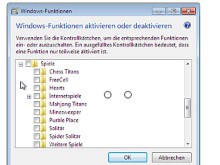
Windows: classic games activate
Retro Games for Windows 8: classic games in a modern guise
Also, for users of Windows 8 and upwards, there are of course numerous, free Top games. The 20 best of which we show you in our photo gallery. Who is just looking for a good solitaire game, it is the Microsoft Solitaire Collection find.
On Windows 10, these classic games, however, are not available. How, nevertheless, quite easy to install can be seen on the next page.





