
"Send to"context menu edit
Using the "Send to", you can copy files to a specific path or any specific Software to edit them. In a few steps, you can add new paths and programs and unwanted entries and delete:
- Open a new Explorer window, for example with the key combination [Win] + [E].
- Type "%Userprofile%\SendTo" in the address bar of the Explorer window to open the "Send to"folder. Sometimes, this path will not open. In the gallery you will find a remedy.
- In the "Send to"folder, you will see the shortcuts that appear in the context menu under "Send to" as targets. Here, you can now delete unwanted entries, and new links to paths or programs to create or copy. These appear in the context menu as destinations under the "Send to".
- At the latest after a restart, the context menu is updated and your Changes.
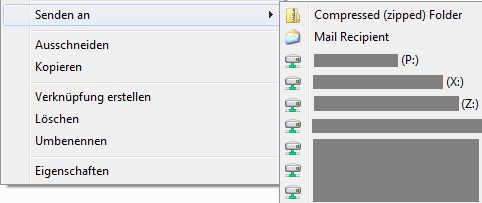
"Send to"context menu
As you right-click-New-entries in the context menu to change, you will learn in this practical tip.
Latest Videos
You can open an Explorer window and enter "%Userprofile%\SendTo" in the path bar to go to in the Send-To menu.

You can open an Explorer window and enter "%Userprofile%\SendTo" in the path bar to go to in the Send-To menu.
If you have no access authorization, or if you have changed in Windows once your user profile, you will be denied access to this folder.

If you have no access authorization, or if you have changed in Windows once your user profile, you will be denied access to this folder.
Try it, alternatively, with the command "shell:sendto" or "%AppData%\Microsoft\Windows\SendTo".

Try it, alternatively, with the command "shell:sendto" or "%AppData%\Microsoft\Windows\SendTo".
If that doesn't work, open the "Run"window with the key combination [Win] + [R] and type "regedit" to open the Registry.

If that doesn't work, open the "Run"window with the key combination [Win] + [R] and type "regedit" to open the Registry.
You are here navigate to "HKEY_CURRENT_USER\Software\Microsoft\Windows\CurrentVersion\Explorer\User Shell Folders".

You are here navigate to "HKEY_CURRENT_USER\Software\Microsoft\Windows\CurrentVersion\Explorer\User Shell Folders".
A double-click "SendTo" and enter in the "value:" the path of any folder. In these, you can now Send shortcuts to create, you want.

A double-click "SendTo" and enter in the "value:" the path of any folder. In these, you can now Send shortcuts to create, you want.





