
Creating new partitions with the EaseUS Partition Master
Open the EaseUS Partition Master. You will be shown all the partitions of your hard disk. Under "File System" is displayed with "Unallocated" of unfilled space on your hard disk.
- Click on the area with the right mouse button.
- Select "Create Partition" from the drop-down menu.
- Under "Partition Label" allows you to name your new Partition. Under "File System" to select between the various file systems.
- Move the Slider to determine the size of the Partition.
- Then click on "OK".
- On the left under "Pending Operations", you will see the scheduled Task. If you now click in the menu of the Software toolbar, "Apply", you can run on "Yes", the Operation is final.
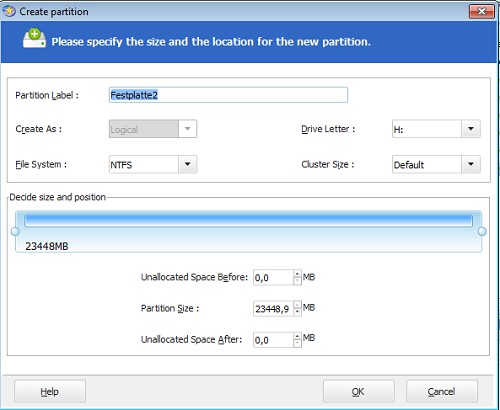
Create partitions with EaseUS
Read how you can partitions on USB-stick, create, and delete. We explain also how to move a Partition under Windows 7 to shrink.





