
Search history in Google Chrome delete
Follow these steps:
- Select in the Google Chrome Browser is the menu icon in the top right.
- Click on "settings".
- Select in the left menu "history" at the top.
- Now you can delete searches and pages that you have accessed manually, by clicking the box in front of the URL in the Checkbox and the "remove Selected items".
- Alternatively, click the "clear browsing data" and select the following Pop-Up window, the entire search history.
- In addition, you can delete it using the button above, only the browser data for a specific period of time.
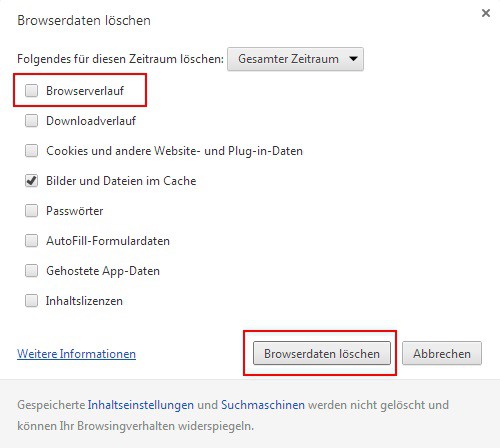
Clear search history in Chrome
As you have multiple user profiles for Chrome Browser set up, you will learn, in a further practical tip.





