Example: Word-Shortcut for cross-references creating
If you need to, for example, paste in a Text is often cross-references, there is no default key combination. The competent function in the quick start integrating bar, with a Shortcut to do it faster.
- To Set up open the command "file | options" and choose customize the category "ribbon".
- There you click at the bottom in the "keyboard shortcuts" in "Customize". Then, scroll in the categories list box down and select the "All commands". Right next to it in the list field "commands", locate the desired statement. For the cross-reference, this command is called exactly the "insert cross-reference".
- If you do not find the right instruction, you can restrict the categories on the left of the pre-selection to the "references tab", to narrow the selection.
- The field "Current keys" displays may already have this command assigned to button combinations. In principle, the same command can also be used in several ways to assign.
- Click in the field "press New shortcut key" and press the desired variant. Look under the left box, if a message appears "Currently assigned to". Try a different key combination to change the usual functionality in Word.
- For example, [Alt]+[Q] is still available. This combo you save by default in the General document template "normal.dotm", so she works later in all the texts.
- By Changing the field "in" can limit you Save the assignment but also on the current document. Click on "Assign" then it saves the configuration.
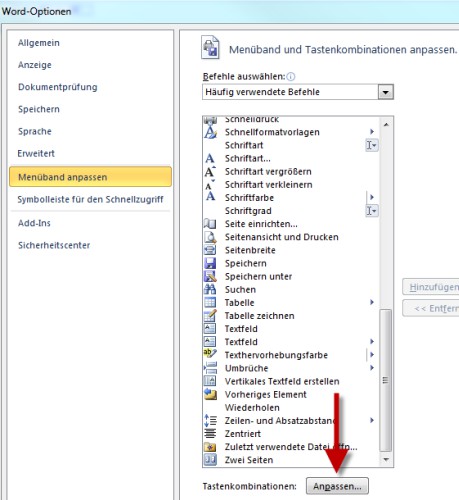
Key combinations in the Word options