You can get random errors and even fail to open or access the file if it gets corrupted. If you are facing issues when opening the accdb file due to corruption, then read this post. It discusses the methods to repair corrupted accdb file. It also mentions an advanced Access repair tool to easily repair the severely corrupted Access database files. But before proceeding, let’s see the causes of corruption in Access database files.
Causes for Corruption in ACCDB Files
There could be several reasons for corruption in the ACCDB files. Some of them are:
- Suddenly or Improperly Closing the Access Application
Sometimes, abruptly closing the Access application can result in Access database corruption.
- Abrupt System Shutdown
If your system is shut down abruptly due to reasons, such as power failure or faulty battery, then it may result in corruption in the Access files.
- Issues with Storage Drive
Damaged storage media can also corrupt the database files (Accdb).
- Incompatible Add-ins
Incompatible or outdated add-ins can sometimes corrupt or damage the database files. It usually occurs when you install add-ins from untrusted websites.
How to Repair Corrupted accdb File?
Here are some effective methods to repair and recover corrupted accdb file.
Method 1: Restore Database from Backup
If your Access database (.accdb) file gets corrupt, you can try to restore the backup file (if available). To do so, follow these steps:
- Open the File Explorer window on your system.
- Search for the backup folder where you’ve stored the database backup
- Next, copy the backup file and then paste it to the location where the corrupted database file is located.
- If the dialog box pops up asking to replace the existing database copy, then click OK to allow it.
Method 2: Import Corrupt Database Objects into a New Database
If you do not have the backup of your database, you can try importing the components from the damaged/corrupted accdb file into a new database. Here are the steps:
- In the Microsoft Access application, click the External Data option and then click on the Import Access Database button.
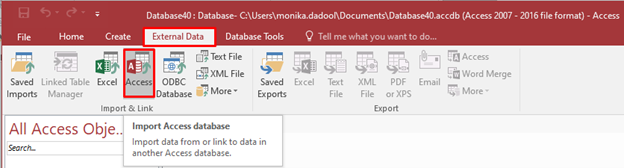
- The “Get External Data-Access database” window appears. Click on the Browse option to select the affected database file.
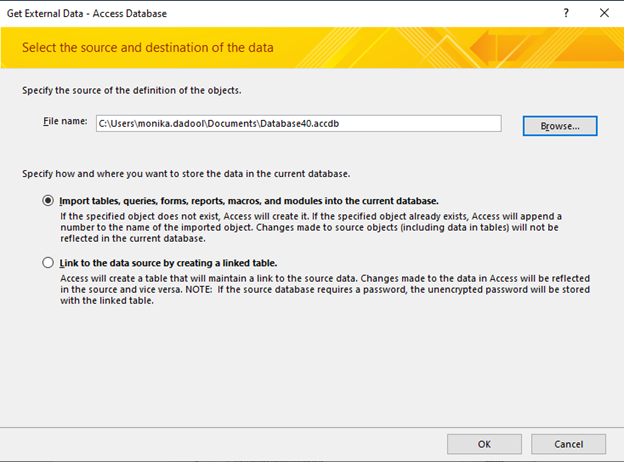
- In the same window, click on the “Import tables, forms, reports, macros, and modules into the current database” option
- Then, choose the desired objects of the database that you want to import into the new database.
- Click OK.
Method 3: Use ‘Compact and Repair’ Utility to Repair Access Database
You can manually repair Access 2007 (or the latest version) database files using Microsoft’s built-in repair utility - Compact and Repair. Here are the steps to do so:
- First, open your Microsoft Access application.
- Then, double-click on Blank Desktop database.
- Go to File and click Close.
- On the Blank Database window, select the File option.
- Click the Compact and Repair Database option under the Database Tools section.

- Choose and click on the desired database you need to repair and then click Compact.
- After the tool completes the repairing process, you can check the repaired copy of the ACCDB file at the exact location where you’ve saved your database file.
The “Compact and Repair” utility isn’t always successful in repairing the corrupt database files. It can fail due to certain reasons. In such a case, you can take the help of a dedicated Access database recovery software to repair the corrupt accdb files. One such dedicated and reliable tool is Stellar Repair for Access. It can recover all the objects of the corrupted database with complete integrity. This tool helps you fix common corruption-related errors in Access database.
Closure
Follow the methods, with step-wise instructions, we’ve mentioned above to repair corrupted database files (ACCDB). If nothing works, use a professional Access repair software to repair the corrupt ACCDB files. Stellar Repair for Access is an advanced repair tool that supports both ACCDB/MDB files. It has a simple UI that makes the process of repairing corrupted database files smooth and quick. It is compatible with all Windows editions, including Windows 11.