
Do you remember those amazing days of handheld gaming? The Nintendo DS was an absolute game-changer, capturing everyone's attention with its awesome games and cool dual-screen design. Unfortunately, the production of Nintendo DS games eventually stopped, leaving us feeling a little wistful for the good times we had with our beloved handheld consoles.
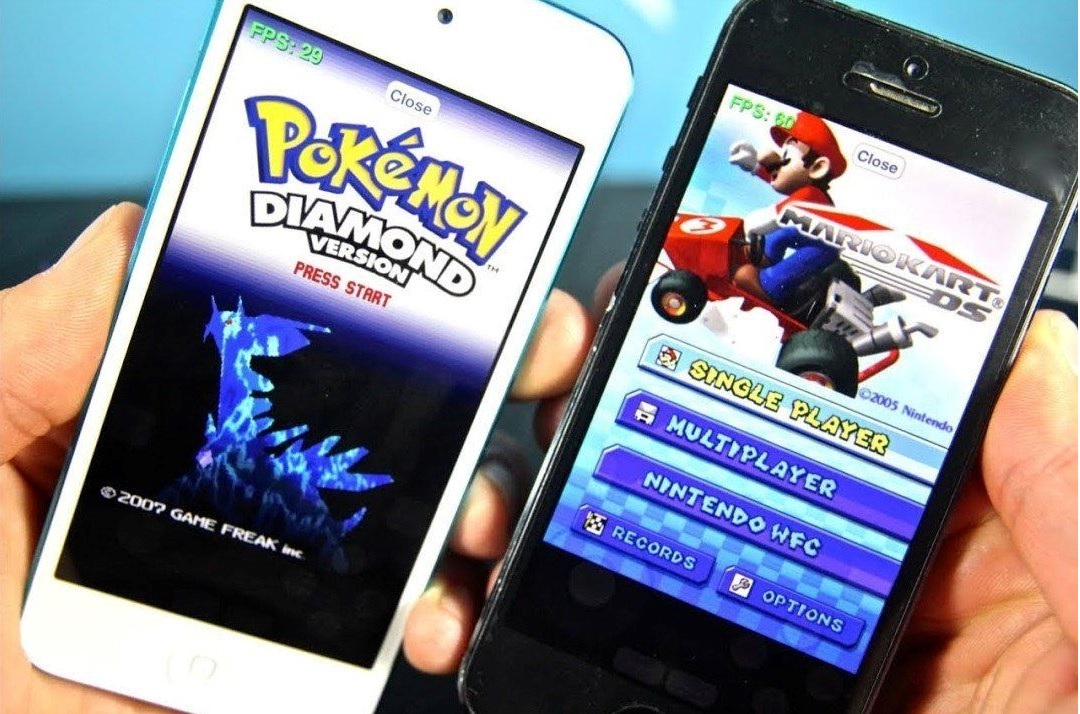
Fear not! Modern technology has made it possible to revive cherished gaming memories directly on your iPhone. Indeed, through the use of emulators, you have the opportunity to re-immerse yourself in the realm of Nintendo DS games, re-experiencing the joy they once brought.
This guide will demonstrate how to enjoy Nintendo DS games on your iPhone, allowing you to revisit the greatness of these enduring classics.
Steps to Relive the Nintendo DS Magic on Your iPhone
Find a Reliable Emulator
This will be the first step towards playing Nintendo DS (NDS) games on your iPhone. Currently, there are several NDS emulators available. Some are free, while others are subscription-based. We will use an open-source emulator-“the iNDS”, for this guide.
This emulator offers a user-friendly gaming experience on your iPhone device by enabling it to run NDS games designed for the console. It imitates the NDS hardware and software and should work with the latest and previous iOS versions.
To obtain the emulator, you will need to download it. Open Safari and navigate to the official iNDS website. Search for the download link and click on it to obtain the iNDS.ipa file. This should begin the installation process. From here, follow the instructions displayed to complete the installation.
Source for Nintendo DS ROMs
Since iNDS is just an emulator, it won’t have any installed NDS games. This is why you will need to download ROMs NDS files.
To obtain the ROMs, you simply go to your Safari browser and search online for a reputable website. The website will present you with a wide selection of the NDS ROMs. NDS ROM files contain the NDS games’ data and are the game cartridge digital copies.
Browse the ROMs of the game(s) you want and download them to your iPhone. The ROMs will be in compressed formats, so you will need to decompress them. For several ROMs, create a folder that will organize and make them easily accessible.
Add the ROMs to iNDS.
You will need to run iNDS on your iPhone by simply tapping its icon. This will display the iNDS logo. Navigate to Files, then go to the folder where your NDS games are stored. Click on the NDS ROM file.
Doing this automatically adds your NDS game to the emulator. The emulator has an easy-to-use interface allowing you to import the ROMs.
How to Play
Now you are ready to play. Go to the emulator, launch it, and click the game you want to play.
You can play from your phone's touchscreen, but you can still use an MFi (Made for iPhone) controller if you prefer.
You may customize the controls to your liking for a comfortable gaming experience.
The iNDS emulator has a save state feature that will enable you to save your game’s progress without worrying about losing it. This will ultimately offer you gaming convenience and flexibility.
Gamer’s Tips
- You must beware that downloading copyrighted game ROMs is illegal. The safe way to obtain game ROMs is to lawfully own the game's physical copy and make a digital backup of it. You should also download ROMs from reliable online sites to avoid malware or virus downloads.
- Only download the latest iNDS made for iOS. It is essential to keep an eye on ROM and iNDS updates. This is because compatibility varies; updates may enhance game performance and fix some gaming issues.
- If you encounter any performance issues, you can explore the iNDS settings further and adjust things like the rendering resolution, frame rates, and any extra options that may improve the gameplay.
Alternatives to the iNDS Emulator
The iOS platform has several limitations when it comes to downloading retro game emulators due to the Apple restrictions. However, there are several emulators you may use, such as Delta, NDS4iOS, and Provenance.
The emulator you choose is contingent on your priorities and preferences. For instance, iNDS is best for simplicity and compatibility. Delta is ideal as it supports other platforms apart from the Nintendo DS. It also doesn’t demand jailbreaking. NDS4iOS is best for cloud services integration.
Bottom line
So, even though Nintendo stopped making NDS, that doesn't mean we have to say goodbye to the fun we had. Thanks to emulators and ROMs, we can relive those magical moments all over again. Grab your iPhone, install an emulator, download ROMs and get ready to dive back into the golden era of handheld gaming.
Do you remember those amazing days of handheld gaming? The Nintendo DS was an absolute game-changer, capturing everyone's attention with its awesome games and cool dual-screen design. Unfortunately, the production of Nintendo DS games eventually stopped, leaving us feeling a little wistful for the good times we had with our beloved handheld consoles.
Fear not! Modern technology has made it possible to revive cherished gaming memories directly on your iPhone. Indeed, through the use of emulators, you have the opportunity to re-immerse yourself in the realm of Nintendo DS games, re-experiencing the joy they once brought.
This guide will demonstrate how to enjoy Nintendo DS games on your iPhone, allowing you to revisit the greatness of these enduring classics.
Steps to Relive the Nintendo DS Magic on Your iPhone
Find a Reliable Emulator
This will be the first step towards playing Nintendo DS (NDS) games on your iPhone. Currently, there are several NDS emulators available. Some are free, while others are subscription-based. We will use an open-source emulator-“the iNDS”, for this guide.
This emulator offers a user-friendly gaming experience on your iPhone device by enabling it to run NDS games designed for the console. It imitates the NDS hardware and software and should work with the latest and previous iOS versions.
To obtain the emulator, you will need to download it. Open Safari and navigate to the official iNDS website. Search for the download link and click on it to obtain the iNDS.ipa file. This should begin the installation process. From here, follow the instructions displayed to complete the installation.
Source for Nintendo DS ROMs
Since iNDS is just an emulator, it won’t have any installed NDS games. This is why you will need to download ROMs NDS files.
To obtain the ROMs, you simply go to your Safari browser and search online for a reputable website. The website will present you with a wide selection of the NDS ROMs. NDS ROM files contain the NDS games’ data and are the game cartridge digital copies.
Browse the ROMs of the game(s) you want and download them to your iPhone. The ROMs will be in compressed formats, so you will need to decompress them. For several ROMs, create a folder that will organize and make them easily accessible.
Add the ROMs to iNDS.
You will need to run iNDS on your iPhone by simply tapping its icon. This will display the iNDS logo. Navigate to Files, then go to the folder where your NDS games are stored. Click on the NDS ROM file.
Doing this automatically adds your NDS game to the emulator. The emulator has an easy-to-use interface allowing you to import the ROMs.
How to Play
Now you are ready to play. Go to the emulator, launch it, and click the game you want to play.
You can play from your phone's touchscreen, but you can still use an MFi (Made for iPhone) controller if you prefer.
You may customize the controls to your liking for a comfortable gaming experience.
The iNDS emulator has a save state feature that will enable you to save your game’s progress without worrying about losing it. This will ultimately offer you gaming convenience and flexibility.
Gamer’s Tips
- You must beware that downloading copyrighted game ROMs is illegal. The safe way to obtain game ROMs is to lawfully own the game's physical copy and make a digital backup of it. You should also download ROMs from reliable online sites to avoid malware or virus downloads.
- Only download the latest iNDS made for iOS. It is essential to keep an eye on ROM and iNDS updates. This is because compatibility varies; updates may enhance game performance and fix some gaming issues.
- If you encounter any performance issues, you can explore the iNDS settings further and adjust things like the rendering resolution, frame rates, and any extra options that may improve the gameplay.
Alternatives to the iNDS Emulator
The iOS platform has several limitations when it comes to downloading retro game emulators due to the Apple restrictions. However, there are several emulators you may use, such as Delta, NDS4iOS, and Provenance.
The emulator you choose is contingent on your priorities and preferences. For instance, iNDS is best for simplicity and compatibility. Delta is ideal as it supports other platforms apart from the Nintendo DS. It also doesn’t demand jailbreaking. NDS4iOS is best for cloud services integration.
Bottom line
So, even though Nintendo stopped making NDS, that doesn't mean we have to say goodbye to the fun we had. Thanks to emulators and ROMs, we can relive those magical moments all over again. Grab your iPhone, install an emulator, download ROMs and get ready to dive back into the golden era of handheld gaming.
Do you remember those amazing days of handheld gaming? The Nintendo DS was an absolute game-changer, capturing everyone's attention with its awesome games and cool dual-screen design. Unfortunately, the production of Nintendo DS games eventually stopped, leaving us feeling a little wistful for the good times we had with our beloved handheld consoles.
Fear not! Modern technology has made it possible to revive cherished gaming memories directly on your iPhone. Indeed, through the use of emulators, you have the opportunity to re-immerse yourself in the realm of Nintendo DS games, re-experiencing the joy they once brought.
This guide will demonstrate how to enjoy Nintendo DS games on your iPhone, allowing you to revisit the greatness of these enduring classics.
Steps to Relive the Nintendo DS Magic on Your iPhone
Find a Reliable Emulator
This will be the first step towards playing Nintendo DS (NDS) games on your iPhone. Currently, there are several NDS emulators available. Some are free, while others are subscription-based. We will use an open-source emulator-“the iNDS”, for this guide.
This emulator offers a user-friendly gaming experience on your iPhone device by enabling it to run NDS games designed for the console. It imitates the NDS hardware and software and should work with the latest and previous iOS versions.
To obtain the emulator, you will need to download it. Open Safari and navigate to the official iNDS website. Search for the download link and click on it to obtain the iNDS.ipa file. This should begin the installation process. From here, follow the instructions displayed to complete the installation.
Source for Nintendo DS ROMs
Since iNDS is just an emulator, it won’t have any installed NDS games. This is why you will need to download ROMs NDS files.
To obtain the ROMs, you simply go to your Safari browser and search online for a reputable website. The website will present you with a wide selection of the NDS ROMs. NDS ROM files contain the NDS games’ data and are the game cartridge digital copies.
Browse the ROMs of the game(s) you want and download them to your iPhone. The ROMs will be in compressed formats, so you will need to decompress them. For several ROMs, create a folder that will organize and make them easily accessible.
Add the ROMs to iNDS.
You will need to run iNDS on your iPhone by simply tapping its icon. This will display the iNDS logo. Navigate to Files, then go to the folder where your NDS games are stored. Click on the NDS ROM file.
Doing this automatically adds your NDS game to the emulator. The emulator has an easy-to-use interface allowing you to import the ROMs.
How to Play
Now you are ready to play. Go to the emulator, launch it, and click the game you want to play.
You can play from your phone's touchscreen, but you can still use an MFi (Made for iPhone) controller if you prefer.
You may customize the controls to your liking for a comfortable gaming experience.
The iNDS emulator has a save state feature that will enable you to save your game’s progress without worrying about losing it. This will ultimately offer you gaming convenience and flexibility.
Gamer’s Tips
- You must beware that downloading copyrighted game ROMs is illegal. The safe way to obtain game ROMs is to lawfully own the game's physical copy and make a digital backup of it. You should also download ROMs from reliable online sites to avoid malware or virus downloads.
- Only download the latest iNDS made for iOS. It is essential to keep an eye on ROM and iNDS updates. This is because compatibility varies; updates may enhance game performance and fix some gaming issues.
- If you encounter any performance issues, you can explore the iNDS settings further and adjust things like the rendering resolution, frame rates, and any extra options that may improve the gameplay.
Alternatives to the iNDS Emulator
The iOS platform has several limitations when it comes to downloading retro game emulators due to the Apple restrictions. However, there are several emulators you may use, such as Delta, NDS4iOS, and Provenance.
The emulator you choose is contingent on your priorities and preferences. For instance, iNDS is best for simplicity and compatibility. Delta is ideal as it supports other platforms apart from the Nintendo DS. It also doesn’t demand jailbreaking. NDS4iOS is best for cloud services integration.
Bottom line
So, even though Nintendo stopped making NDS, that doesn't mean we have to say goodbye to the fun we had. Thanks to emulators and ROMs, we can relive those magical moments all over again. Grab your iPhone, install an emulator, download ROMs and get ready to dive back into the golden era of handheld gaming.





