
iPhone/Outlook Sync email, contacts and calendar via iTunes
Start iTunes and connect your iPhone to the Computer. In the upper right corner there is a Button for your iPhone appears. Click on this and you will be directed to the settings for the synchronization.
- Click on the tab "Info". Here, you define which functions you want to sync with Outlook.
- You put in the appropriate Places a check mark. Sets whether address book contacts, calendar entries (iCal), and/or E-Mail Accounts to be synced.
- The process start with a click on "Synchronize".
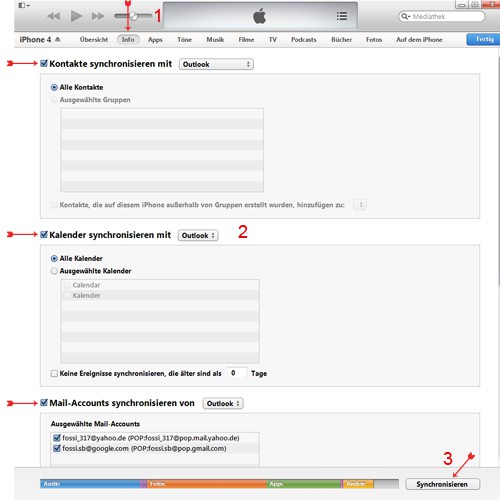
Sync via iTunes-tab "Info".
The data exchange works in both directions. Create Outlook appointment, it will be transferred to your iPhone. Just as the Smartphone created contact from now on will be automatically transferred to Outlook. Our tip refers to the iTunes Version 11.0.2.





