Desktop notifications in Facebook mute
Google Chrome shows notifications from Apps and websites as a pop-up on your Desktop. This also includes notifications on Facebook belong to. The new Feature you can disable at any time.
- Open Facebook in Google Chrome and log in to your Account.
- Then right click at the top on the globe to open your notifications.
- At the top you choose the Option to "Mute".
- In the new window select from the Drop-Down menu the desired time period in which notifications should not be displayed.
- Finally, click on "Save" to apply your selection and make Facebook quiet.
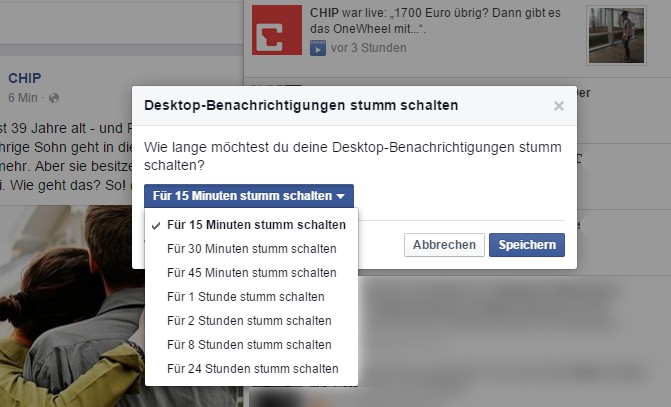
Facebook mute
Facebook notifications in Chrome disable
You do not want to switch off only the Desktop notifications from Facebook, but all messages from Google Chrome to disable, you can disable the Feature completely:
- To do this, click in the Browser in the top right of the menu Icon with the three dots.
- In the drop-down menu, select the entry "settings". Now a new Tab opens.
- You scroll down a bit and click on "Advanced" to get all the settings displayed.
- In the section "security and privacy" click "content settings" and then "notifications".
- Now you can choose whether to block all notifications, or only to certain websites. Here you can enter Facebook in the list of blocked pages.
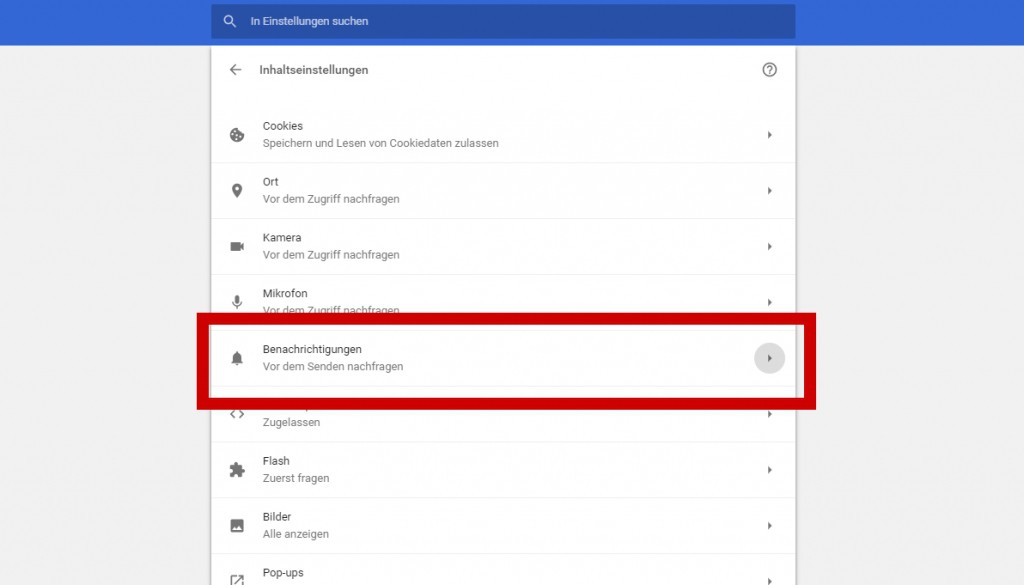
Disable notifications
You also want to from other websites and Apps, no messages, you can use the notifications in the Chrome completely off.