
Manual: motherboard Version to find out, and the Bios Update download
In order to find the correct Update for your motherboard, you need to first know the exact version number. If you have no documentation of your motherboard to help you with Tools like CPU-Z or Speccy.
- Install CPU-Z on your Windows PC and start the program. Under the "Mainboard" tab you will find detailed information about your motherboard.
- Based on the manufacturer and the model designation you can now browse to the Homepage of the Mainboard manufacturer for a BIOS Update. Also look for a matching version number voting.
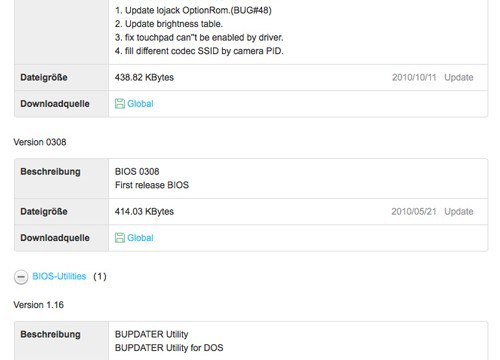
- You have found the correct entry to your motherboard, download the two files from the manufacturer's page: once the program that you can use to your BIOS "flashing" (a .exe file), and once the most recent Version of the BIOS itself (often a .bin file). Pack both files in a folder on your PC.
- In the case of some motherboards, you can perform the Update directly from the BIOS interface. In this case, you only need the latest BIOS file.

The Update method choose
If you have all the necessary files, read the instructions of the manufacturer. There are several methods how you can get the Update in the BIOS Flash memory. This will vary depending on the brand of the motherboard.
- Gigabyte uses for its Boards, the BIOS program QFLASH. On UEFI boards, you need to be a little more effort: you need a bootable USB Stick and the BIOS file with the extension U1L.
- In all DOS-based Update programs (also BIOS Utilities called) you will need a bootable USB Stick on which you have to save the DOS file and the BIOS file.
- Some manufacturers offer a Windows program to flash your BIOS. This is the easiest way, but it also offers the largest potential for error. Windows should happen during the Update process hang up or an error, won't boot your Computer up correctly.
- In all cases, an interruption of the Update process ensures that your Computer starts next Time!
The BIOS under Windows 10 renew - so it goes
You have installed on your Computer, Windows 10, is the procedure for Bios Update similar to older versions of Windows. Also, in Windows 10 you must first find out what motherboard is installed.
- The current Bios Version can be read in the system information by typing "Msinfo32.exe" in the search box.
- Select the "system summary", you will receive the necessary information under "BIOS Version/date".
- Do you know what motherboard is in your Computer and have downloaded the Update, do the other Windows versions also.
- In the case of the BIOS successor UEFI, the Update is to make it easier. Start the UEFI as the BIOS. Then you can use the Update function of the UEFI.
- As the Update Tool in the UEFI is, it varies from manufacturer to manufacturer. In the case of Asus the function, for example, "EZ-Flash means", in the case of Gigabyte, you can find the Update Tool under the name"Q-Flash".
BIOS via a USB Stick to flash
If you have your BIOS with a USB Stick to flash want to prepare these according to the manufacturer's data and then start the Computer. Be sure to read the instructions of the manufacturer!
- You select after a reboot the USB-Stick as a boot medium. The BIOS program either starts automatically, or you end up in the DOS prompt "C:\". In this case, you must run the program manually, by typing the file name and confirm. (Tip: With the command "dir" you should get all files in the directory display.)
- Now follow exactly the instructions of the program and the manufacturer's instructions. Failed attempts are punished with an unusable System, because the BIOS is for the complete system start-up, before the operating system is responsible.
- Some of the Update processes require a restart or pulling the power plug. Follow these steps only if you are prompted by the program. After a successful completion of the update, you can start with your new BIOS.
If you want to have more detailed information about your BIOS, check always on the manufacturer's website. In a further practical tip read, as your BIOS access can.





